

Lock a screen to one app and control exactly who can leave it
CloudyFy TV's kiosk mode locks a device to the CloudyFy TV player so nobody can back out to the home screen, open another app or change settings by accident. Exiting takes a PIN issued from the CMS, not a code set on the device, and you choose the active hours the kiosk is allowed to run.
What is kiosk mode?
Kiosk mode locks a device so the only thing it can do is run the CloudyFy TV player, showing your published content and nothing else: no home screen, no notification shade, no other installed app reachable by a tap or a swipe. Leaving kiosk mode requires a PIN that CloudyFy TV's CMS issues, not one stored or set on the device itself, so exiting is something your team controls centrally, not something a curious visitor or an unsupervised employee can stumble into.
How does kiosk mode work?
Turn on kiosk lock
From Device management, lock a single device or a whole group into kiosk mode.Exit requires a CMS-issued PIN
Nobody leaves kiosk mode by pressing buttons on the device; the exit code comes from the CMS, so control stays with whoever manages your fleet, not with whoever is standing in front of the screen.Set active hours
Choose the windows a kiosk-locked device is allowed to run, so a reception tablet, for example, can lock down outside business hours instead of sitting on all day every day.Auto-relaunch after a reboot
If a locked device loses power or restarts, it comes back straight into kiosk mode, so a screen that goes dark overnight is still locked down the next morning without a site visit.
Why does kiosk mode matter?
Reception and lobby tablets
Stay on the welcome or check-in screen you built, not whatever app someone last opened out of curiosity.
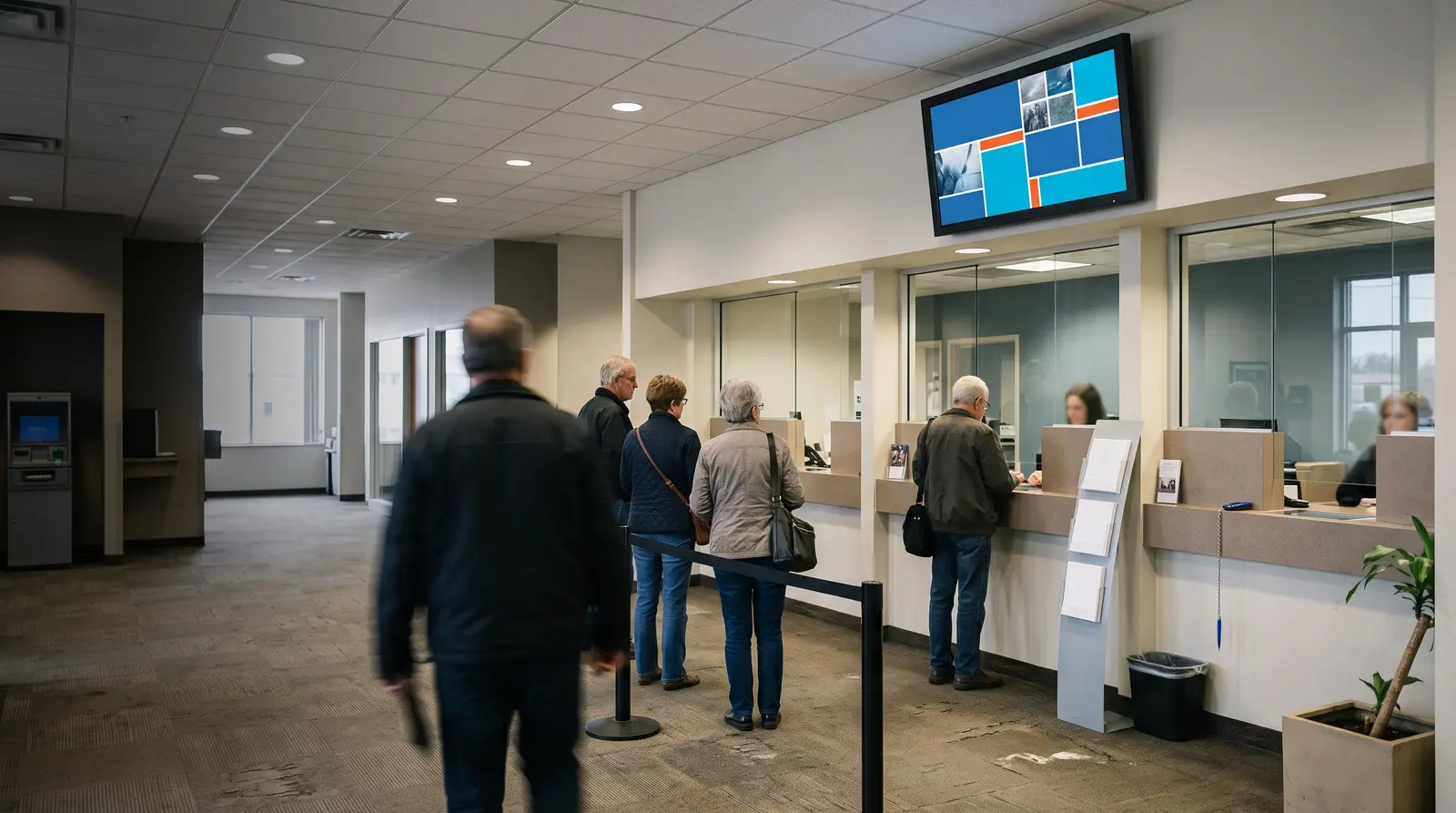
Bank and clinic token-queue displays
Cannot be backed out of by a visitor tapping the screen while waiting to be called.
Retail and hospitality counter displays
Survive high staff turnover, since exiting requires a PIN issued from the CMS rather than a passcode staff can share or forget.
Education deployments on shared or one-to-one tablets
Stay locked to the intended app during the hours you set, rather than relying on a student to leave it alone.
How is kiosk mode different from a device with no real lock?
Leaving a tablet or a TV in "app mode" with no dedicated lock relies entirely on nobody pressing the home button, and any generic Android launcher gets you back out with a swipe. A generic mobile-device-management tool can lock a screen too, but it is built for managing employee phones, not for tying a lock to a content schedule or to active hours that match when a location is actually open.
CloudyFy TV's kiosk mode is built for signage specifically: the lock, the exit PIN, the active hours and the auto-relaunch behavior all live in the same console you already use to manage devices and content, so locking a screen down is one more setting, not a separate tool to run alongside CloudyFy TV.
What does kiosk mode actually control?
Three things: who can leave, when the app is allowed to run, and what happens after a restart.
FAQs
Start your free trial
Lock down your first device. Try kiosk lock on one tablet before rolling it out fleet-wide: start your 7-day free trial of Starter, no commitment.