

See and control every screen from one dashboard
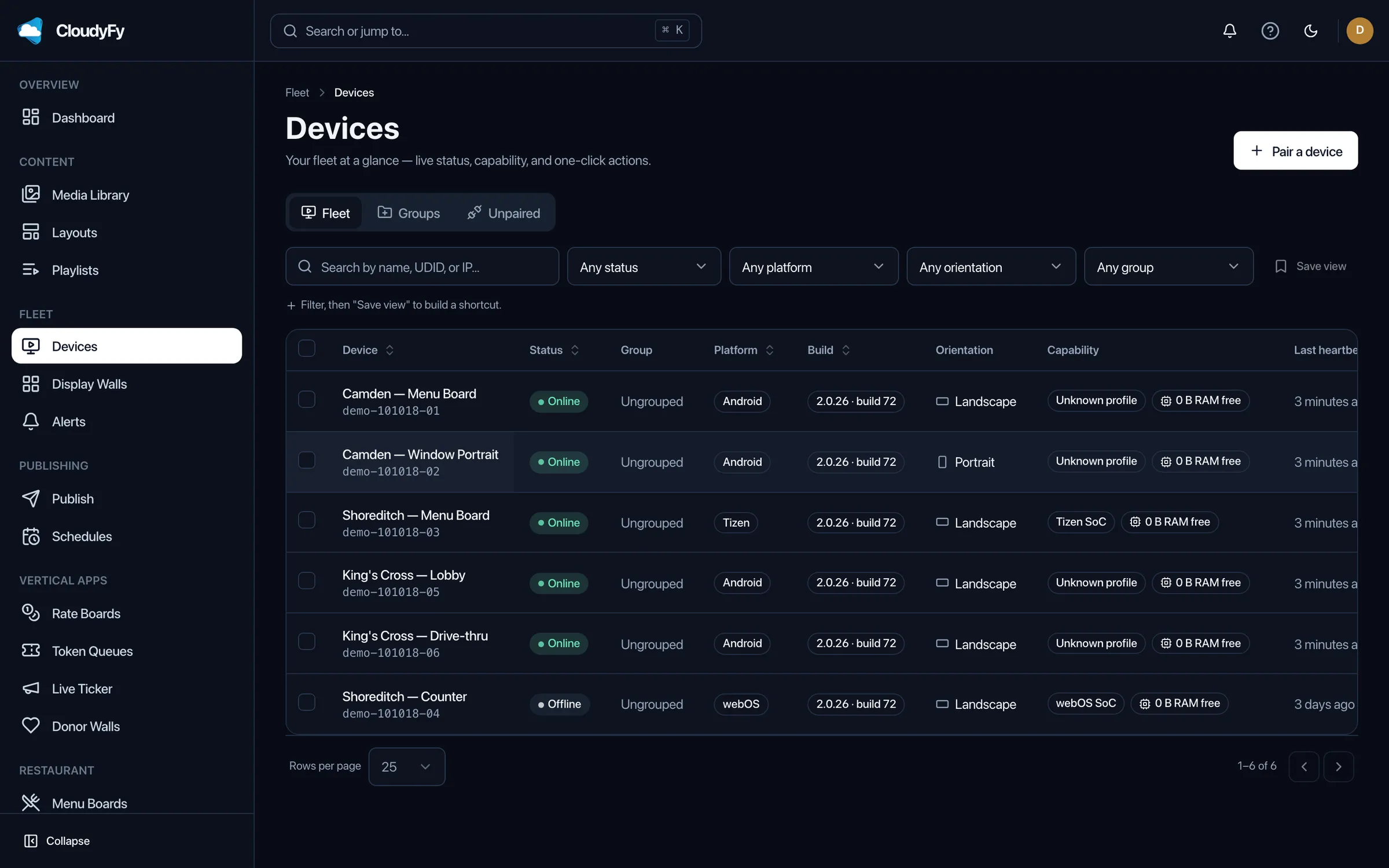
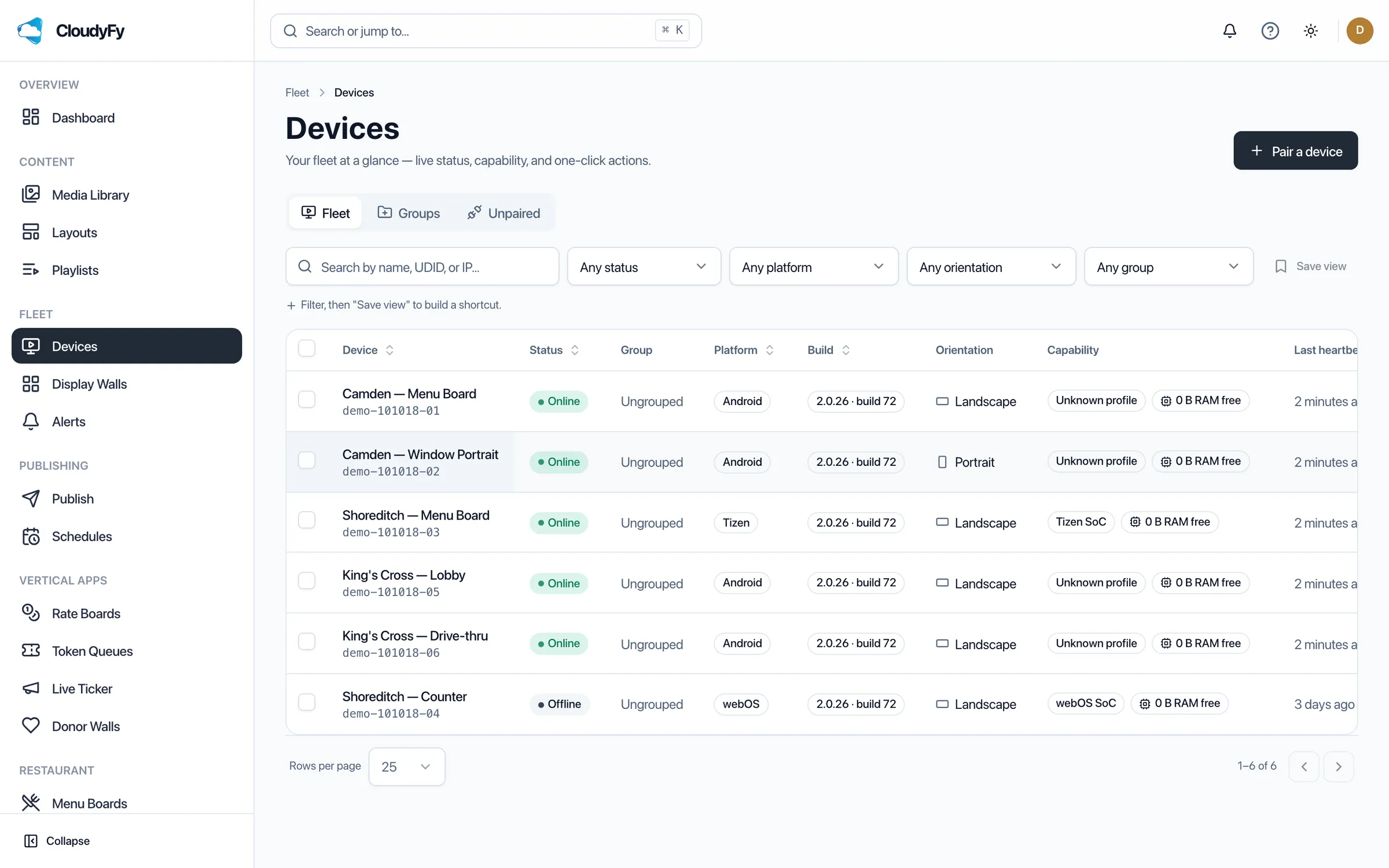
A device is the physical screen; the player is the app running on it. Pair one with a six-character code, put it in a group, and from then on you can restart its player, change what it plays, lock it into kiosk mode, or check whether it's even online, all without walking up to the hardware.
What is device management in CloudyFy TV?
Device management is the control layer between you and every screen on your account. Pair a screen once with a short code shown on its player, and it appears in your dashboard as a device you can organize into groups, assign content to, and act on remotely. Every device carries its own status (online, offline, or never connected), so a fleet of five or five hundred screens is one list, not five hundred site visits. Devices survive the real world. If a screen reboots, loses power, or gets factory-reset and re-paired, it keeps its play history and its plan seat rather than showing up as a brand-new device you have to reconfigure from scratch.
- Pair by a six-character code, no IP address or network config to enter
- Group devices by location, department, or timezone for one-click bulk actions
- Restart the player app on every platform; reboot, clear cache and pull a live screenshot on Android devices provisioned with CloudyFy as Device Owner
- Three-state health reporting: up, down, or never online, never a fake 0% for a screen that simply hasn't connected yet
How does remote device management work?
Pair the screen
Install the CloudyFy TV player on the device, and it displays a short pairing code. Enter that code in the dashboard and the device is claimed to your account.Group it
Add the device to a group by location, brand, or role, so schedules, layouts, and bulk actions target the group instead of one screen at a time.Act on it remotely
Restart a frozen player, force a content refresh, clear the local cache, override what’s currently playing, or lock the device into kiosk mode, all from the dashboard.Watch its health
The fleet view shows uptime and offline incidents per device, so a screen that's gone dark shows up before a customer notices, not after.
Why does remote device management matter?
No site visits for routine fixes
A frozen or misbehaving player gets a remote app restart or cache clear instead of a technician drive.
Groups scale bulk work
Reassign content, run a schedule, or push an override to every screen in a store, a region, or a department in one action instead of one device at a time.
Kiosk mode with a real exit path
Lock a device to the CloudyFy TV player so no one can back out to the home screen, with a server-issued exit PIN for when your own team needs to get in.
Honest health reporting
"Never online" and "offline" are reported as distinct states from "up," so your uptime numbers reflect reality instead of hiding a screen that was never actually connected.
Device management vs. the manual way
Without remote management, keeping screens running means someone physically visits each location to reboot a frozen player, reconnect an unpaired device, or check whether a screen is actually on. That does not scale past a handful of sites and it means problems get discovered by a customer, not by you. CloudyFy TV's dashboard turns "is the Mumbai store's screen even on" into a status you check from your desk, and turns "the screen froze again" into a remote reboot instead of a drive across town.

The proof: what device pairing actually preserves
Pairing is designed around the real lifecycle of hardware in the field: reboots, power cuts, factory resets, and app reinstalls. When a device re-pairs after any of those, it keeps its play history and its device seat on your plan rather than counting as a new device and consuming a second seat. That is a deliberate lifecycle design, not an accident of the pairing flow.
FAQs
See and control every screen from one dashboard
A device is the physical screen; the player is the app running on it. Pair one with a six-character code, put it in a group, and from then on you can restart its player, change what it plays, lock it into kiosk mode, or check whether it's even online, all without walking up to the hardware.