

Every device CloudyFy TV digital signage runs on
CloudyFy TV is a bring-your-own-device platform: run it on the Android TV box, Fire TV Stick, Samsung Tizen or LG webOS display, Android tablet, or browser-capable PC you already have. Compare all six platforms below, then start a 7-day free trial of the Starter plan, no commitment.
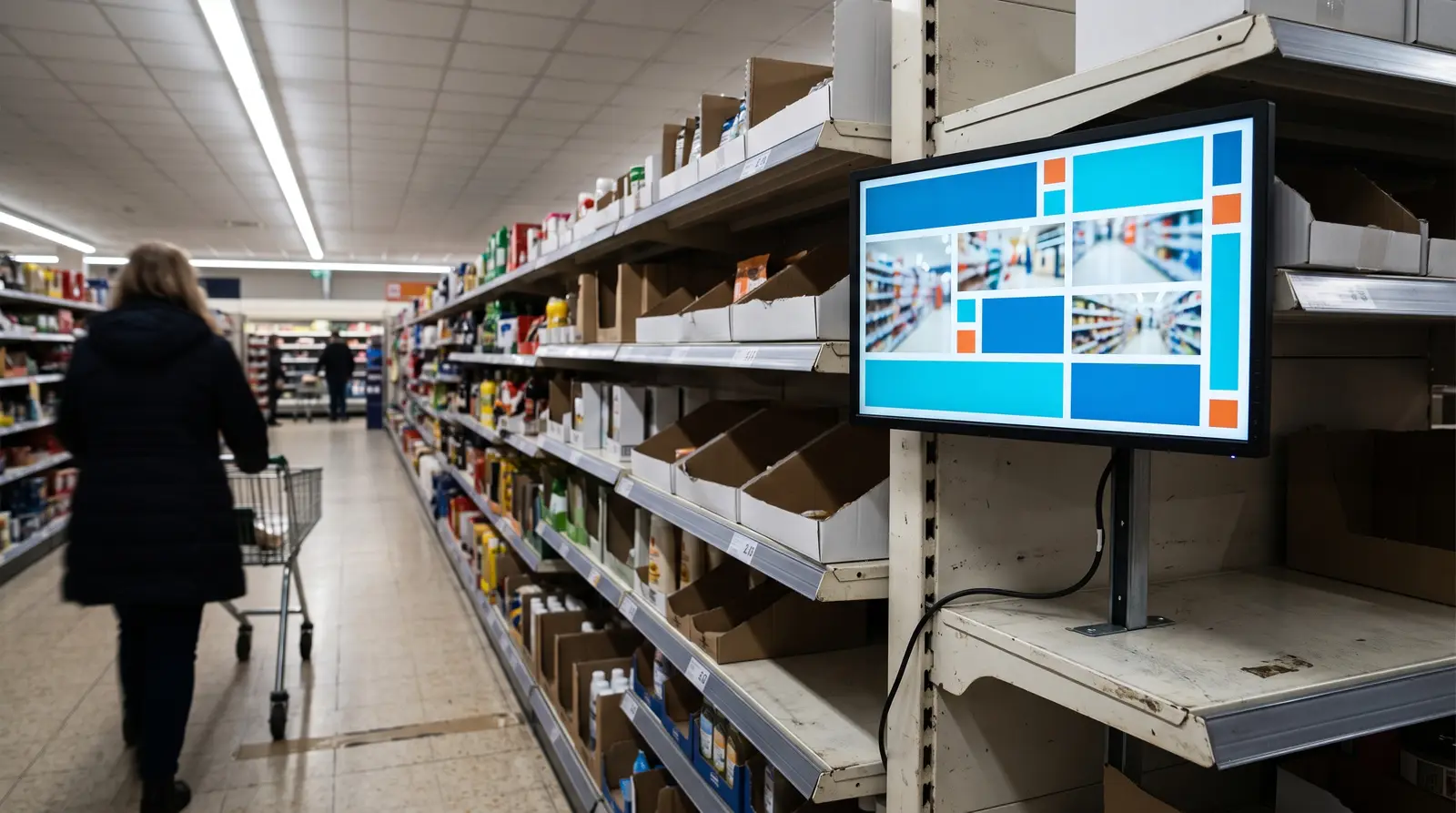
Which devices does CloudyFy TV support?
CloudyFy TV ships one player for each of six platforms: Android TV, Amazon Fire TV, Android tablets, Samsung Tizen, LG webOS, and a browser player built on Chromium. That is the complete list. There is no Apple TV app, no Chromecast receiver, no Raspberry Pi image, and no native Windows application. A Windows, macOS, or Linux machine runs CloudyFy TV through the browser player instead of a dedicated app.
Streaming sticks and boxes
Smart TVs and commercial displays
Tablets
What does a CloudyFy TV player need to run?
A CloudyFy TV player needs three things: a network connection for setup and content updates, a power source that will not get switched off with the display, and a mount appropriate to the device.
Network
Wi-Fi or Ethernet is required for initial pairing and pulling new content. Once content is cached locally, the player keeps playing through a dropped connection.
Power
Plug streaming sticks into their own power adapter, not a TV's USB port. A TV's USB port often cuts power when the display goes to standby, which can reboot the stick at the wrong moment.
Ports
Sticks and boxes require HDMI. Tizen and webOS displays, as well as Android TV smart TVs, only need power and network because the player runs inside the TV itself.
Mounting
Any VESA mount, TV bracket, tablet enclosure, or countertop stand works. CloudyFy TV does not require a specific mount or a proprietary bracket.
What happens if a screen loses its internet connection?
It keeps playing
Every CloudyFy TV player caches its content locally and plays from that cache when the network is down, then resyncs automatically once the connection returns. Publishing does not push one large file to every screen. It compiles a manifest of exactly which pieces of content a given screen is missing, so a device that already has 90 percent of a layout downloads only the new 10 percent. Combined with the local cache, this is what lets a screen survive a dead router without going black, and resume on its own after a power cut, on any of the four platforms.
Which CloudyFy TV player is right for you?
It depends on what you are mounting a screen on and whether that screen is fixed or portable. The table below compares every platform on the five questions IT buyers ask most: cost, 4K support, portrait orientation, offline playback, and remote reboot or restart. The live page can be sorted by any column; here it is shown in a fixed default order.
| Capability | Typical cost | 4K playback | Portrait mode | Offline playback | Remote reboot or restart | Best for |
|---|---|---|---|---|---|---|
Fire TV Stick 4K Max | ~$50-60 | Included | Included | Included | App restart | The cheapest way to get one screen live today |
Android TV box (commercial-grade) | Roughly $40-150 depending on model | Depends on the model | Included | Included | Yes, on boxes provisioned with CloudyFy as Device Owner (Android 7+) | Fleets that need a dedicated, always-on box |
Android TV smart TV | Cost of the TV, often already owned | Yes on most 2021+ sets | Depends on the mount | Included | App restart | Retail and hospitality screens already on an Android TV panel |
Samsung Tizen display | Cost of the display | Yes on 2021+ panels | Included | Included | App restart | Sites standardized on Samsung Smart Signage or Tizen TVs |
LG webOS display | Cost of the display | Yes on 2021+ panels | Included | Included | App restart | Sites standardized on LG commercial or Smart TV panels |
Android tablet | Cost of the tablet | Depends on the tablet | Included | Included | Yes, on tablets provisioned with CloudyFy as Device Owner (Android 7+, set up from factory reset) | Counter displays, reception desks, small-format portrait |
Browser (PWA) | Cost of a Windows, macOS, or Linux machine you already own | Depends on the machine | Included | Included | Page restart | Zero-hardware-purchase setups, existing PCs and mini PCs |
Typical cost
- Fire TV Stick 4K Max
- ~$50-60
- Android TV box (commercial-grade)
- Roughly $40-150 depending on model
- Android TV smart TV
- Cost of the TV, often already owned
- Samsung Tizen display
- Cost of the display
- LG webOS display
- Cost of the display
- Android tablet
- Cost of the tablet
- Browser (PWA)
- Cost of a Windows, macOS, or Linux machine you already own
4K playback
- Fire TV Stick 4K Max
- Included
- Android TV box (commercial-grade)
- Depends on the model
- Android TV smart TV
- Yes on most 2021+ sets
- Samsung Tizen display
- Yes on 2021+ panels
- LG webOS display
- Yes on 2021+ panels
- Android tablet
- Depends on the tablet
- Browser (PWA)
- Depends on the machine
Portrait mode
- Fire TV Stick 4K Max
- Included
- Android TV box (commercial-grade)
- Included
- Android TV smart TV
- Depends on the mount
- Samsung Tizen display
- Included
- LG webOS display
- Included
- Android tablet
- Included
- Browser (PWA)
- Included
Offline playback
- Fire TV Stick 4K Max
- Included
- Android TV box (commercial-grade)
- Included
- Android TV smart TV
- Included
- Samsung Tizen display
- Included
- LG webOS display
- Included
- Android tablet
- Included
- Browser (PWA)
- Included
Remote reboot or restart
- Fire TV Stick 4K Max
- App restart
- Android TV box (commercial-grade)
- Yes, on boxes provisioned with CloudyFy as Device Owner (Android 7+)
- Android TV smart TV
- App restart
- Samsung Tizen display
- App restart
- LG webOS display
- App restart
- Android tablet
- Yes, on tablets provisioned with CloudyFy as Device Owner (Android 7+, set up from factory reset)
- Browser (PWA)
- Page restart
Best for
- Fire TV Stick 4K Max
- The cheapest way to get one screen live today
- Android TV box (commercial-grade)
- Fleets that need a dedicated, always-on box
- Android TV smart TV
- Retail and hospitality screens already on an Android TV panel
- Samsung Tizen display
- Sites standardized on Samsung Smart Signage or Tizen TVs
- LG webOS display
- Sites standardized on LG commercial or Smart TV panels
- Android tablet
- Counter displays, reception desks, small-format portrait
- Browser (PWA)
- Zero-hardware-purchase setups, existing PCs and mini PCs
Device reboot works only on Android devices provisioned with CloudyFy as Device Owner (Android 7+). Fire TV, Samsung Tizen, LG webOS and the browser player offer app or page restart from the console. No row in this table requires a subsidized stick or a bundled device purchase. CloudyFy TV prices per device at a lower rate than the category average, so there is no hardware bundle to sell you in the first place.
How do you set up a CloudyFy TV player?
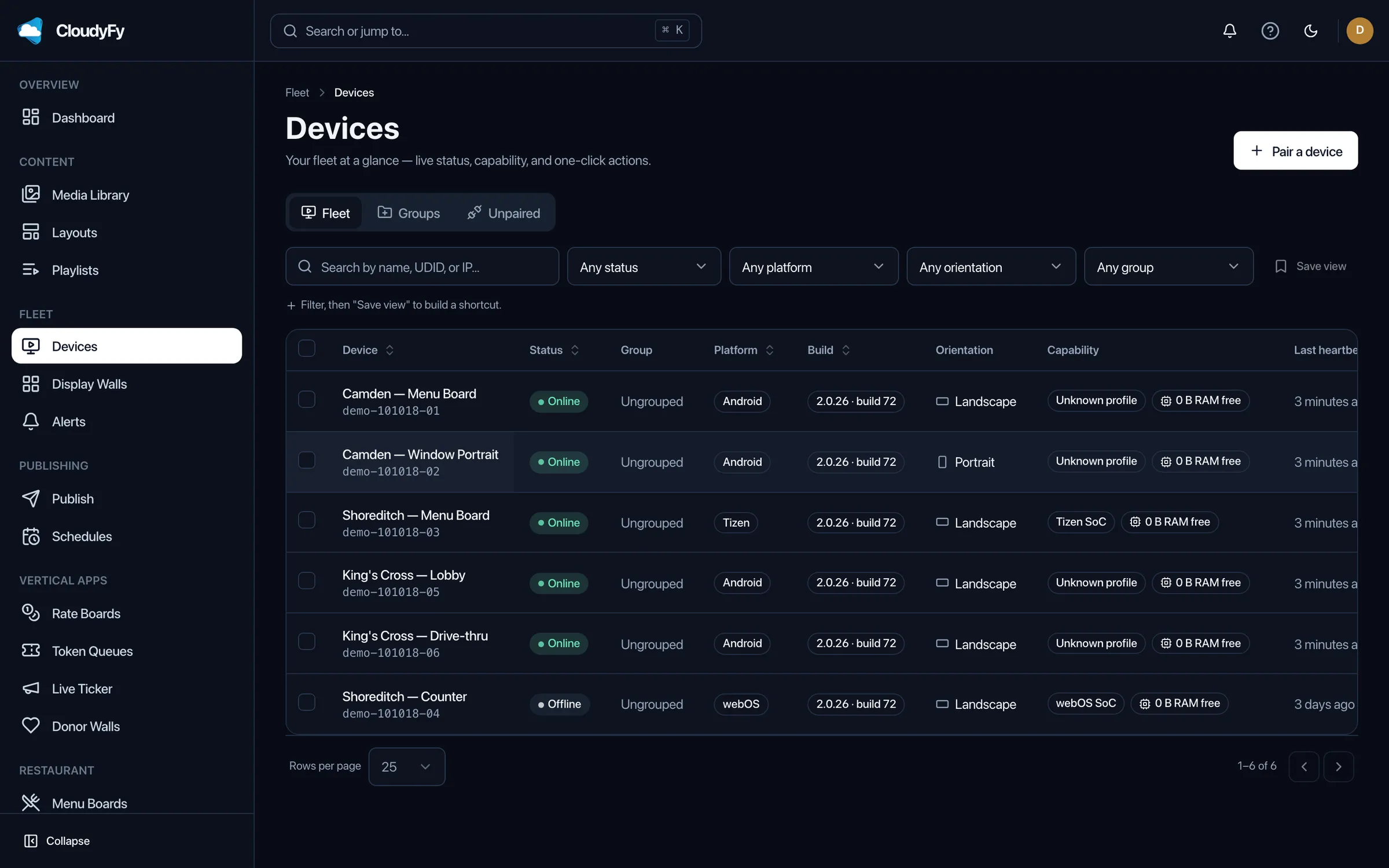
Every CloudyFy TV player follows the same four steps regardless of platform. Install the player software, open it once to see a pairing code, enter that code in the CMS to claim the device, then assign it to a group and publish content.
Install
Install from Google Play or the Amazon Appstore for Android and Fire TV, or sideload the .apk directly. Sideload the .wgt package for Tizen and the .ipk package for LG webOS, since those store listings are still coming soon. For the browser player, simply open a URL.Open
Launch the player once. It shows a short pairing code and nothing else.Pair
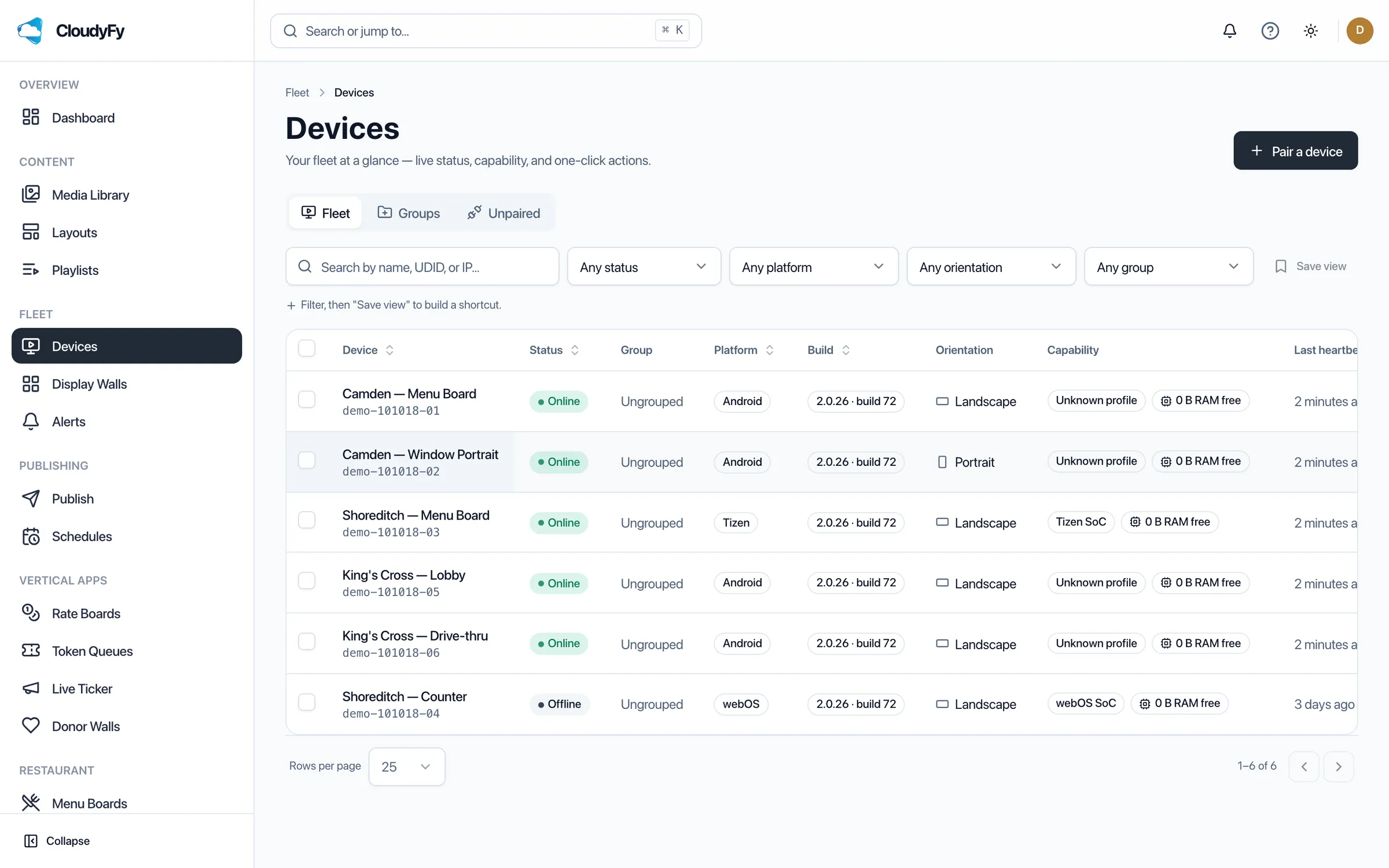
In the CloudyFy TV CMS, open Devices, choose Pair by Code, and enter what the screen is showing. The device is now claimed to your company.Assign
Put the device in a group, attach a layout or playlist, and publish. Content downloads over the network and keeps playing even after that network drops.
FAQs
Ready to pick a screen and pair it
Start a 7-day free trial of the Starter plan, no commitment, or see the full comparison of block types and layouts in a live demo first.