

Samsung Tizen digital signage with CloudyFy TV
Run CloudyFy TV directly inside the Samsung Tizen display you already own, with no external box to buy, and start a 7-day free trial of the Starter plan, with no commitment.
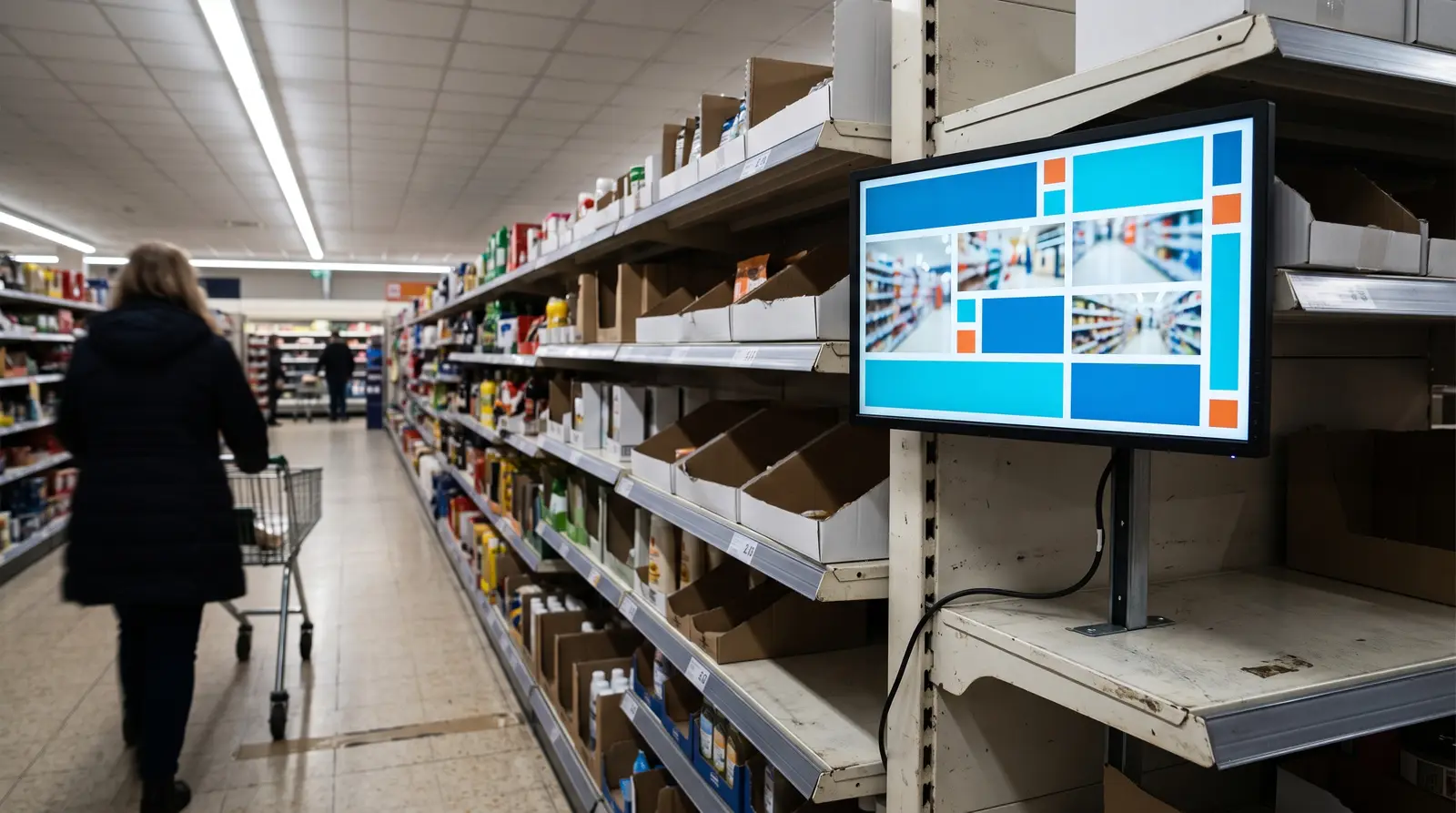
Is Samsung Tizen good for digital signage?
Yes. Samsung's own Smart Signage displays are purpose-built for continuous, always-on operation, exactly the duty cycle digital signage needs, and CloudyFy TV's Tizen player runs directly inside the TV. There is no external box to buy, mount, cable, or power separately. The requirement is Tizen 6.0 or later, which uses Chromium 76 under the hood and covers Samsung Smart Signage panels and Samsung Smart TVs shipped from 2021 onward. If your display is newer than that, it is already inside CloudyFy TV's supported range, and the panel itself becomes the device: pairing and publishing work the same as on a Fire TV Stick or an Android TV box, just without a separate piece of hardware in the mix, though remote control differs slightly, CloudyFy TV restarts the app and refreshes content from the console rather than rebooting the panel. Samsung sells its own displays under many overlapping names across regions, from the entry-level Smart Signage QB range to the higher-end QM and QH series, plus consumer Tizen Smart TVs sold under yet another set of model numbers. CloudyFy TV does not require a specific Samsung model. What decides compatibility is the Tizen version running on that unit, so the reliable way to check a display before buying is to look up its Tizen version, not to hunt for a CloudyFy-specific model list.
- A Tizen display that rejects a freshly built .wgt package almost always means the certificate profile does not match the exact Tizen build the display reports, not a corrupted file. Re-issuing the certificate from Tizen Studio's Certificate Manager against the display's actual reported version, rather than reusing one built for a nearby model, resolves the great majority of failed installs before they ever reach CloudyFy TV's own pairing step.
Samsung Tizen requirements and compatibility
| Capability | CloudyFy TV's floor | Notes |
|---|---|---|
Operating system | Tizen 6.0 or later | Built on Chromium 76; covers Samsung Smart Signage and Smart TV panels from 2021 onward |
App package | .wgt widget, signed certificate per model | Signed in Tizen Studio's Certificate Manager against a Samsung Seller Office account |
Install method | Sideload over USB or the network using Tizen Studio | Samsung Seller Office store listing coming soon |
Display families | Smart Signage QB, QM, and QH commercial ranges, plus consumer Tizen Smart TVs | The Tizen version decides compatibility, not the model family printed on the box |
Duty cycle | Smart Signage commercial range: rated for continuous 24/ | Smart Signage is the safe choice for a screen that never gets a day off |
Existing CMS | Displaces Samsung MagicINFO if a display already runs it | CloudyFy TV takes over the launch slot MagicINFO used to occupy |
Recovery | Restart the app from the CloudyFy TV console; a routine restart never reissues the certificate | A frozen display needs an app restart, not a fresh signed package; a full reboot uses the display's own power schedule |
Operating system
- CloudyFy TV's floor
- Tizen 6.0 or later
- Notes
- Built on Chromium 76; covers Samsung Smart Signage and Smart TV panels from 2021 onward
App package
- CloudyFy TV's floor
- .wgt widget, signed certificate per model
- Notes
- Signed in Tizen Studio's Certificate Manager against a Samsung Seller Office account
Install method
- CloudyFy TV's floor
- Sideload over USB or the network using Tizen Studio
- Notes
- Samsung Seller Office store listing coming soon
Display families
- CloudyFy TV's floor
- Smart Signage QB, QM, and QH commercial ranges, plus consumer Tizen Smart TVs
- Notes
- The Tizen version decides compatibility, not the model family printed on the box
Duty cycle
- CloudyFy TV's floor
- Smart Signage commercial range: rated for continuous 24/
7 operation; consumer Tizen TVs: generally not - Notes
- Smart Signage is the safe choice for a screen that never gets a day off
Existing CMS
- CloudyFy TV's floor
- Displaces Samsung MagicINFO if a display already runs it
- Notes
- CloudyFy TV takes over the launch slot MagicINFO used to occupy
Recovery
- CloudyFy TV's floor
- Restart the app from the CloudyFy TV console; a routine restart never reissues the certificate
- Notes
- A frozen display needs an app restart, not a fresh signed package; a full reboot uses the display's own power schedule
How do you install CloudyFy TV on a Samsung Tizen display?
The signed certificate step is a one-time requirement per display model. Once CloudyFy TV issues the signed .wgt matching your Tizen version, every additional unit of the same model installs the same package without repeating the certificate work, which is what makes rolling out a multi-screen Samsung fleet faster after the first display is done. If the display previously ran a different signage app, this signing step is unaffected either way, since it targets the Tizen OS certificate chain itself, not whichever app was installed before.
Get the signed package
CloudyFy TV provides a signed .wgt package matching your display's Tizen version.Enable Developer Mode
On the TV, open the Apps screen, find Developer Mode, and turn it on with your computer's IP address.Install the widget
Connect using Samsung's Tizen Studio, or your existing Samsung device management tooling, and push the .wgt package to the display over the network.Pair the device
Launch CloudyFy TV on the TV, note the pairing code shown on screen, and enter it in the CloudyFy TV CMS under Devices > Pair by Code.Assign, publish, and set auto-launch
Add the display to a group, assign a layout, publish, then set CloudyFy TV to launch automatically on power-up, so the display comes back to signage after every power cycle.
Samsung Tizen or a different player?
| Capability | Best for |
|---|---|
Samsung Tizen display | Sites already standardized on Samsung Smart Signage or Tizen Smart TVs |
LG webOS display | Sites standardized on LG instead; the same all-in-one approach, see / |
Fire TV Stick or Android TV box | Cheaper if you do not already own a Samsung display; see / |
Browser player | A Windows or Mac machine you already have, no display purchase involved |
Best for
- Samsung Tizen display
- Sites already standardized on Samsung Smart Signage or Tizen Smart TVs
- LG webOS display
- Sites standardized on LG instead; the same all-in-one approach, see /
players/ lg-webos/ - Fire TV Stick or Android TV box
- Cheaper if you do not already own a Samsung display; see /
players/ fire-tv/ - Browser player
- A Windows or Mac machine you already have, no display purchase involved
If the display is already on the wall, use it. If you are buying new, an external box only makes sense when the panel itself is not already a supported smart-display platform, and a Smart Signage panel typically costs more upfront than a Fire TV Stick but removes an external device, a second remote, and an extra HDMI cable from the install entirely.
Switching a Samsung Tizen display from another CMS to CloudyFy TV?
Either path preserves the display itself and its mount; nothing about switching CMS platforms requires new hardware, only a different signed .wgt package and a fresh pairing code entered into CloudyFy TV’s Devices module. The same two paths apply when switching an LG webOS display, with an .ipk package and ares-install in place of the .wgt workflow, see switching an LG webOS display at /players/lg-webos/.
Keep the display
Remove the old signage app's auto-launch setting, sideload CloudyFy TV's signed .wgt package the same way described above, and set it as the new default app. If the display currently runs Samsung MagicINFO, stop MagicINFO's client service first and, if the display is enrolled in a MagicINFO server, unenroll it there too, otherwise MagicINFO can reclaim the launch slot on its next scheduled sync.Start clean
Reset the display's installed apps first if the old platform's background services conflict with a fresh install, then sideload and pair CloudyFy TV on a clean device.
Fixed commercial display or a smaller Samsung Smart TV?
Choose the commercial range for a screen that never turns off
The same commercial-versus-consumer tradeoff applies on LG's range, see /players/lg-webos/ for the equivalent reasoning. On Samsung's side, choose the Smart Signage QM, QH, or QB commercial range for a lobby, retail floor, or any screen that runs unattended all day, since those panels are built to run brighter and manage heat over a full working shift the way a living-room TV is not. A consumer Samsung Smart TV is fine for a break room or a short-hours display, but budget for the commercial range wherever a screen never turns off.
FAQs
Ready to pair a Samsung Tizen display
Start a 7-day free trial of the Starter plan, no commitment, and turn the display you already own into a CloudyFy TV screen.