

Browser-based digital signage with CloudyFy TV
Use the Windows, Mac, or Linux machine you already have with no new hardware to buy, and start a 7-day free trial of the Starter plan with no commitment.
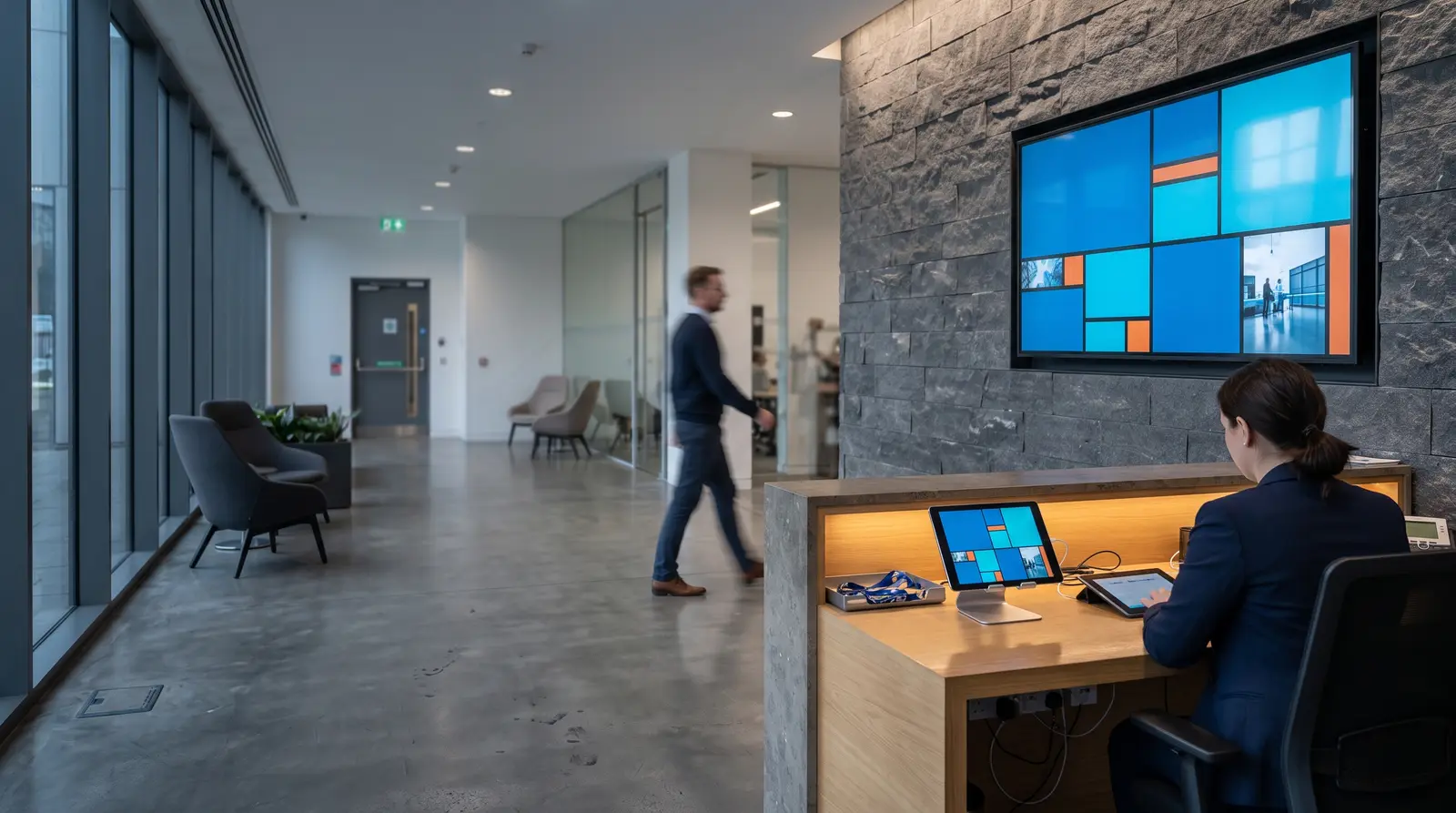
Can CloudyFy TV run without a dedicated media player device?
Yes. Open the CloudyFy TV browser player in any Chromium-based browser, Chromium 71 or later, and the machine running that browser becomes the screen. There is no APK, no .wgt, no .ipk, nothing to sideload. It is a URL and a pairing code. That makes it the right fit for a Windows PC, a Mac, a Linux box, or a mini PC you already own, and it is the only one of CloudyFy TV’s six platforms that is not tied to Android, Tizen, or webOS specifically. Anywhere a current Chrome or Edge browser runs, CloudyFy TV runs. Because the requirement is the browser rather than a specific operating system, the browser player is also the fallback for hardware CloudyFy TV has no dedicated app for: a Windows point-of-sale terminal already mounted at a counter, a Linux thin client an IT team standardized on, or any machine whose primary job is something else and signage is a secondary use.
- Two settings need disabling separately from CloudyFy TV on a browser-player machine, because the operating system does not know a signage layout is what is on screen. The machine's own screensaver, sleep, and display-off timers keep running underneath the browser, so a laptop left on its default power plan can blank the display mid-layout even while the tab is still playing; switch the power plan to never sleep or dim. And a browser's own automatic-update mechanism occasionally restarts the browser process to apply a new version, which briefly closes and reopens the kiosk window; if that restart lands at an inconvenient moment, pin the browser to a fixed extended-support release if your IT team already manages one, otherwise treat the few seconds of restart as the price of staying current. If video looks stuttery on an older machine, check that hardware acceleration is turned on in the browser's settings, a machine without a dedicated GPU otherwise falls back to software video decoding, which uses far more CPU to play the same layout.
Browser player requirements and compatibility
| Capability | CloudyFy TV's floor | Notes |
|---|---|---|
Browser | Chromium 71 or later | Covers current Chrome, Edge, and most Chromium-based kiosk browsers |
Operating system | Any: Windows, macOS, Linux | The requirement is the browser, not the OS |
Install method | None; open a URL | No app store, no APK, no sideload step |
Hardware | Whatever runs the browser, a PC, Mac, or mini PC you already own | No dedicated signage hardware to buy |
Duty cycle | Depends on the machine; a mini PC or thin client built for always-on use suits a fixed installation better than a personal laptop | Choose accordingly for 24/ |
Network | Wi-Fi or Ethernet | Whatever the host machine already has |
Remote restart | Page restart from the CloudyFy TV console; a full machine reboot depends on your OS-level tooling | Combine with existing IT tooling for machine-level reboots if needed |
Screen size | No restriction | The player scales the layout to whatever resolution the display connected to the machine reports |
Region availability | No region lock | Works anywhere CloudyFy TV operates |
Browser
- CloudyFy TV's floor
- Chromium 71 or later
- Notes
- Covers current Chrome, Edge, and most Chromium-based kiosk browsers
Operating system
- CloudyFy TV's floor
- Any: Windows, macOS, Linux
- Notes
- The requirement is the browser, not the OS
Install method
- CloudyFy TV's floor
- None; open a URL
- Notes
- No app store, no APK, no sideload step
Hardware
- CloudyFy TV's floor
- Whatever runs the browser, a PC, Mac, or mini PC you already own
- Notes
- No dedicated signage hardware to buy
Duty cycle
- CloudyFy TV's floor
- Depends on the machine; a mini PC or thin client built for always-on use suits a fixed installation better than a personal laptop
- Notes
- Choose accordingly for 24/
7 installs
Network
- CloudyFy TV's floor
- Wi-Fi or Ethernet
- Notes
- Whatever the host machine already has
Remote restart
- CloudyFy TV's floor
- Page restart from the CloudyFy TV console; a full machine reboot depends on your OS-level tooling
- Notes
- Combine with existing IT tooling for machine-level reboots if needed
Screen size
- CloudyFy TV's floor
- No restriction
- Notes
- The player scales the layout to whatever resolution the display connected to the machine reports
Region availability
- CloudyFy TV's floor
- No region lock
- Notes
- Works anywhere CloudyFy TV operates
How do you set up the CloudyFy TV browser player?
Open a Chromium-based browser
Chrome, Edge, or a kiosk browser, on the machine that will drive the screen.Navigate to the CloudyFy TV player URL
It shows a pairing code and nothing else.Pair the device
In the CloudyFy TV CMS, go to Devices, choose Pair by Code, and enter the code shown. This is the same pairing flow every CloudyFy TV platform uses, so it will already be familiar if you have paired an Android TV box, a Fire TV Stick, or a tablet before.Go full screen
Put the browser into full-screen or kiosk mode. Most browsers support a kiosk launch flag, so the taskbar and address bar disappear.Assign, publish, and set relaunch
Attach a layout or playlist, publish, then set the browser to relaunch the player URL automatically on machine startup, using your operating system's standard startup-app settings.
Browser player or dedicated hardware?
| Capability | Best for |
|---|---|
Browser player | Reusing a Windows PC or mini PC you already have on site |
Fire TV Stick or Android TV box | No existing PC on site and you want the cheapest new hardware; see / |
Samsung Tizen or LG webOS display | Already running those TV brands, no external device at all |
Best for
- Browser player
- Reusing a Windows PC or mini PC you already have on site
- Fire TV Stick or Android TV box
- No existing PC on site and you want the cheapest new hardware; see /
players/ fire-tv/ and / players/ android-tv/ - Samsung Tizen or LG webOS display
- Already running those TV brands, no external device at all
If a machine is already sitting idle near the screen location, the browser player is the fastest path to zero new hardware spend.
Switching an existing PC-based signage setup to CloudyFy TV?
Either way, the machine itself, its display, and its network connection stay exactly as they are; only the browser tab it opens on startup changes, which is why this is usually the fastest of any CloudyFy TV migration path.
Keep the machine
Close the old signage software, open the CloudyFy TV player URL in a Chromium browser, and pair it as described above. Set the CloudyFy TV URL as the machine’s kiosk-mode target or startup page so it survives a reboot without manual relaunching.Start clean
If the old software's own kiosk lock or a background auto-launch service keeps overriding the browser, uninstall it first, then set up CloudyFy TV on a clean machine.
When does the browser player make more sense than an app?
Three situations favor the browser over a dedicated app
You already have a Windows, Mac, or Linux machine at the location and do not want to buy a stick or box. You are running signage temporarily, for an event or a pop-up, where reusing a laptop is faster than sourcing dedicated hardware. Or IT already manages the machine’s patching, security, and reboots through existing tools, and you want CloudyFy TV to plug into that rather than replace it. For a purpose-built, always-on wall display with nothing else running on it, a Fire TV Stick or an Android TV box is usually simpler, since there is no other operating system or software stack on the device to manage. A trade show booth, a temporary retail pop-up, or a meeting room screen that already runs a Windows PC for video calls are all good candidates for the browser player specifically because the hardware exists already and the deployment is measured in days or weeks rather than years.
FAQs
Ready to pair a browser player
Start a 7-day free trial of the Starter plan, no commitment, and turn a spare PC into a CloudyFy TV screen with nothing new to buy.