

Android TV digital signage with CloudyFy TV
Bring the Android TV box or Google TV device you already have, or buy one for under $150, and start a 7-day free trial of CloudyFy TV’s Starter plan, with no commitment.
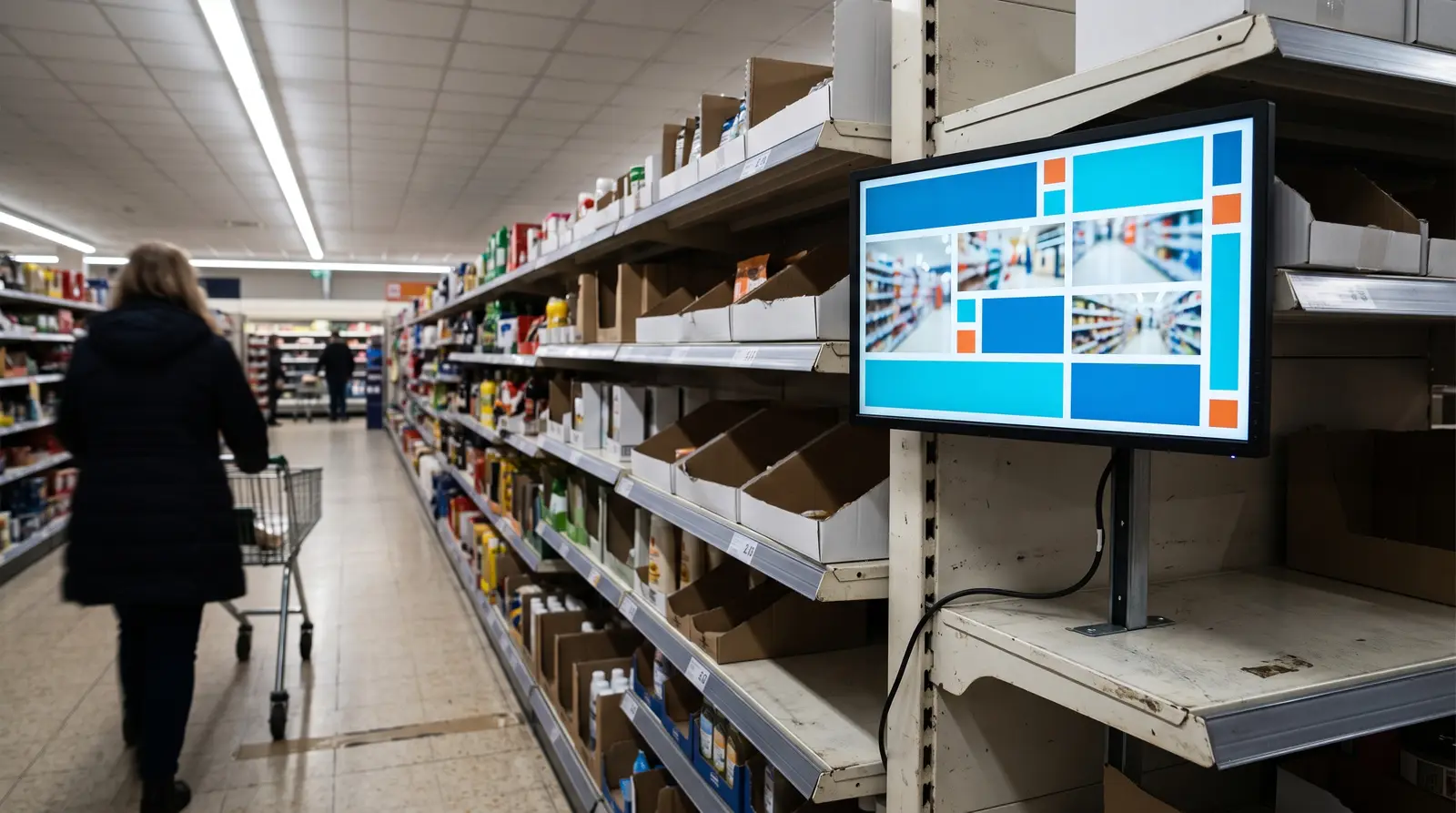
Is Android TV good for digital signage?
Yes, with one condition: use a device built for continuous operation, not a consumer streaming box meant for a few hours of viewing a night. CloudyFy TV’s Android player, package name tv.cloudyfy.player, runs on Android 7.0 (API level 24) and later, which covers essentially every Android TV and Google TV device sold since 2017. That floor was chosen deliberately low so that older hardware, including early Fire TV Stick generations, stays supported rather than being cut off by an unnecessarily high version requirement. "Android TV" and "Google TV" are closely related: Google TV is the interface experience built on top of Android TV OS, not a separate operating system. CloudyFy TV installs and runs the same way on either, because what matters to the player is the Android version underneath, not which launcher sits on top of it. The one real weakness of always-on consumer hardware is an occasional freeze or a failed background update, and that is exactly what CloudyFy TV’s remote restart answers, and on boxes provisioned with CloudyFy as Device Owner (Android 7+) a full device reboot too. Trigger it from the CMS Devices module instead of sending someone to unplug the box by hand.
- Some manufacturer skins put the box to sleep after a fixed idle window even while a layout is actively playing, which reads as a frozen screen from across a room; turn off any screensaver or sleep timer in the box’s own display settings, separately from anything CloudyFy TV controls.
- A box sharing an HDMI input with a TV’s built-in smart-TV apps can occasionally lose its EDID handshake after a firmware update, showing no signal until someone unplugs and replugs the HDMI cable, since a software-side remote restart or reboot cannot force a display to renegotiate a handshake it has already dropped.
Android TV requirements and compatibility
| Capability | CloudyFy TV's floor | Notes |
|---|---|---|
Operating system | Android 7.0 (API level 24) or later | Covers Android TV OS and Google TV interface builds shipped since 2017 |
App package | tv.cloudyfy.player | Same Android package used on Fire TV Sticks and Android tablets |
Install method | Google Play, or sideload the .apk via Developer Options | Listed on Google Play; sideloading also works for boxes without Play Store access |
Processor / RAM | No published minimum beyond the OS version | If the box already runs Android 7.0 or later smoothly, it runs CloudyFy TV |
Duty cycle | Purpose-built commercial Android TV boxes and panels are rated for continuous operation; most consumer streaming boxes are not | Choose hardware rated for the hours a screen actually runs |
Ports | HDMI out; USB-C or micro-USB power depending on the box | Power the box from its own wall adapter, not the display's USB port |
Network | Wi-Fi or Ethernet | Ethernet is recommended for a fixed, permanent install |
Remote reboot | Yes, on boxes provisioned with CloudyFy as Device Owner (Android 7+) | Recovers a frozen box without an on-site visit; app restart works on every box |
Region availability | No region lock | Works anywhere CloudyFy TV operates |
Operating system
- CloudyFy TV's floor
- Android 7.0 (API level 24) or later
- Notes
- Covers Android TV OS and Google TV interface builds shipped since 2017
App package
- CloudyFy TV's floor
- tv.cloudyfy.player
- Notes
- Same Android package used on Fire TV Sticks and Android tablets
Install method
- CloudyFy TV's floor
- Google Play, or sideload the .apk via Developer Options
- Notes
- Listed on Google Play; sideloading also works for boxes without Play Store access
Processor / RAM
- CloudyFy TV's floor
- No published minimum beyond the OS version
- Notes
- If the box already runs Android 7.0 or later smoothly, it runs CloudyFy TV
Duty cycle
- CloudyFy TV's floor
- Purpose-built commercial Android TV boxes and panels are rated for continuous operation; most consumer streaming boxes are not
- Notes
- Choose hardware rated for the hours a screen actually runs
Ports
- CloudyFy TV's floor
- HDMI out; USB-C or micro-USB power depending on the box
- Notes
- Power the box from its own wall adapter, not the display's USB port
Network
- CloudyFy TV's floor
- Wi-Fi or Ethernet
- Notes
- Ethernet is recommended for a fixed, permanent install
Remote reboot
- CloudyFy TV's floor
- Yes, on boxes provisioned with CloudyFy as Device Owner (Android 7+)
- Notes
- Recovers a frozen box without an on-site visit; app restart works on every box
Region availability
- CloudyFy TV's floor
- No region lock
- Notes
- Works anywhere CloudyFy TV operates
This is intentionally not a list of a dozen fine-grained hardware specs. Two things decide whether an Android TV device works with CloudyFy TV: the OS version and whether the manufacturer built it for the hours you plan to run it.
How do you set up CloudyFy TV on an Android TV device?
Five steps, the same on any Android TV box or Google TV device.
Turn on Developer Options
In Settings > Device Preferences > About, tap the build number seven times.Allow the source
In Developer Options, enable installs from unknown sources for whichever file manager or sideload tool you use.Install the APK
Transfer the CloudyFy TV player APK to the device, by USB drive, a sideload tool such as Downloader, or your existing MDM, and install it.Pair the device
Open the player. It shows a pairing code. In the CloudyFy TV CMS, go to Devices, choose Pair by Code, and enter it.Assign and publish
Add the device to a group, assign a layout or playlist, and publish. The screen starts playing immediately and keeps a local cache for offline playback.
Android TV box or something else?
If you already have an Android TV device, use it. If you are buying new, here is how the realistic options compare.
| Capability | Best for |
|---|---|
Fire TV Stick 4K Max | The cheapest way to get one screen live today; see / |
Generic Android TV box (commercial-grade) | Fleets that need a dedicated, purpose-built box rather than a consumer stick |
Android TV smart TV already on site | No extra hardware purchase when the display already runs Android TV |
Samsung Tizen display | Sites standardized on Samsung; see / |
LG webOS display | Sites standardized on LG; see / |
Best for
- Fire TV Stick 4K Max
- The cheapest way to get one screen live today; see /
players/ fire-tv/ - Generic Android TV box (commercial-grade)
- Fleets that need a dedicated, purpose-built box rather than a consumer stick
- Android TV smart TV already on site
- No extra hardware purchase when the display already runs Android TV
- Samsung Tizen display
- Sites standardized on Samsung; see /
players/ samsung-tizen/ - LG webOS display
- Sites standardized on LG; see /
players/ lg-webos/
All five run the same CloudyFy TV layouts. The choice comes down to what you already own and how the screen is mounted.
Switching from another signage platform to CloudyFy TV on Android TV?
You do not need new hardware. Two ways to do it, depending on how tangled the old setup is.
Keep the box
Stop the old signage app from auto-launching on boot, sideload the CloudyFy TV APK the same way described above, and pair it as a new device. Content from the old platform stays on the old platform; layouts, playlists, and schedules for the device are built fresh in CloudyFy TV. Most teams have a single screen switched and playing within about 15 minutes.Start clean
If the old platform left a background service running that keeps fighting CloudyFy TV for the screen, factory reset the box first, then sideload and pair CloudyFy TV on a clean device.
Fixed installation or a portable screen?
Android TV suits a fixed, wall- or ceiling-mounted display
Android TV suits a fixed, wall- or ceiling-mounted display more than a portable one, because most Android TV boxes and panels expect to stay plugged in and networked in one place. For a screen that moves between rooms or events, the browser player on a laptop, or the Android tablet player, is a better fit. See /players/browser/ and /players/android-tablet/. For a panel physically mounted in portrait, set the orientation once in the Devices module; CloudyFy TV renders the layout correctly for that orientation without needing to rotate the video output at the source. CTA
FAQs
Ready to pair an Android TV device
Start a 7-day free trial of the Starter plan, no commitment, and pair your first Android TV box today.