

Android tablet digital signage with CloudyFy TV
Bring the Android tablet you already have, mount it at a counter or on a wall, and start a 7-day free trial of the Starter plan with no commitment.
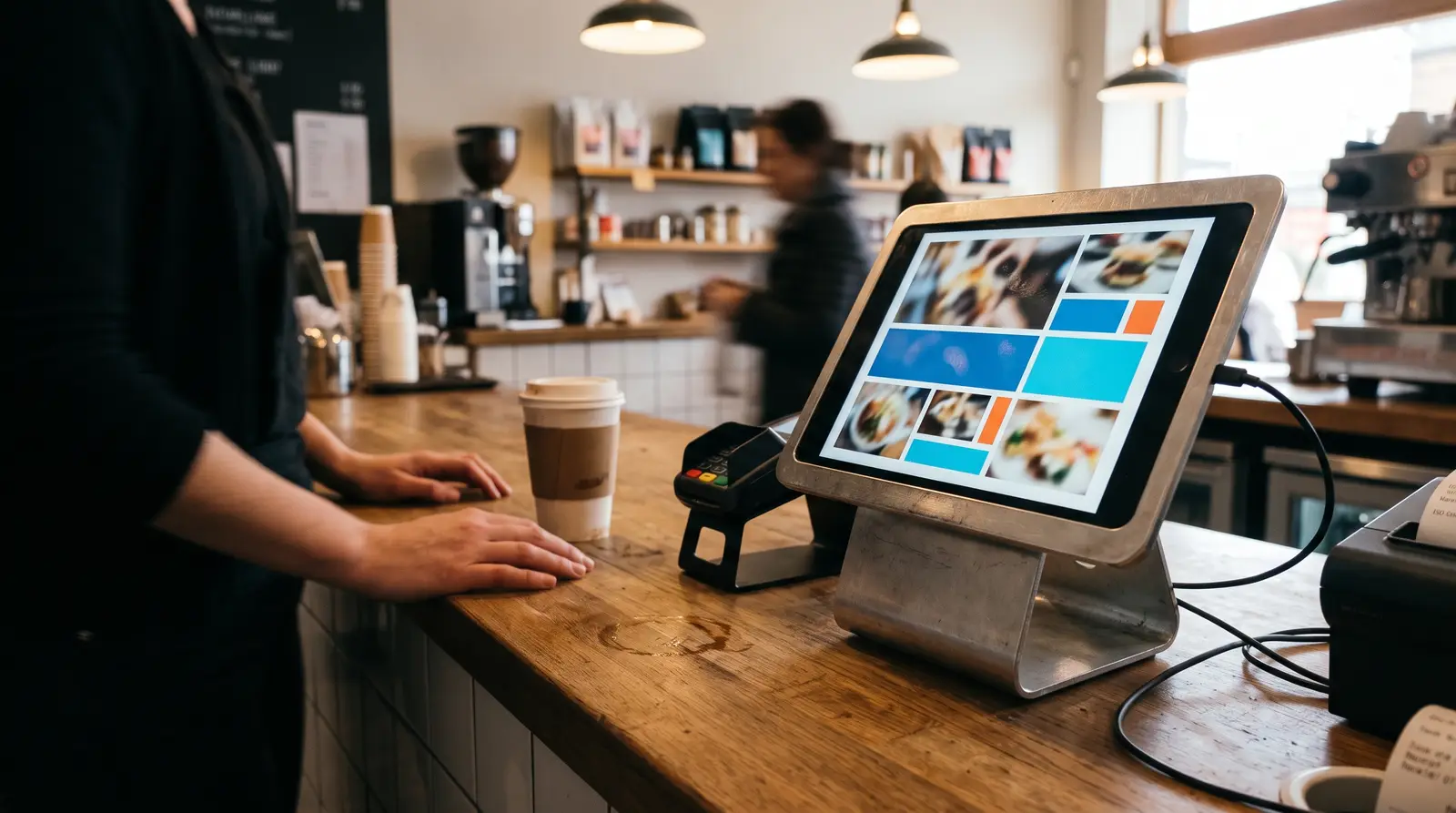
Is an Android tablet good for digital signage?
Yes, especially for counter displays, reception desks, and any screen someone stands close to rather than views from across a room. CloudyFy TV's tablet player is the same app and the same rendering engine used on Android TV and Fire TV, running on the same Android 7.0-and-later minimum requirement, so a layout you build once looks identical whether it plays on a mounted TV or a countertop tablet. Because tablets are portable and often handled by the public, two features matter more here than on a wall-mounted TV: kiosk lock, which stops someone backing out to the home screen, and orientation control, since a tablet is just as likely to be mounted in portrait as landscape.
- Tablets also come from far more manufacturers than TVs do, and CloudyFy TV does not narrow that field. Any device that meets the Android 7.0 floor works, whether it is a budget tablet bought for one counter or an enterprise-managed model already enrolled in a company MDM alongside phones and laptops. Some manufacturers also sell dedicated kiosk or point-of-sale tablets built without a battery, running on DC power alone, which avoids the battery degradation a consumer tablet left plugged in around the clock eventually shows; where budget allows, one of those outlasts a repurposed consumer tablet on a counter that runs open to close every day.
- Two failure modes show up on public-facing tablets in a way they do not on a wall-mounted TV. A capacitive touchscreen can register a phantom tap from condensation, a glare-cleaning cloth, or static, which occasionally looks like the screen dimming or a system overlay flashing briefly rather than a genuine crash, and a scheduled remote reboot from the Devices module clears it. And Android's own system-update prompt can appear over a locked kiosk screen asking for a PIN it does not have, since kiosk lock secures the CloudyFy TV app itself, not the Android system dialog drawn on top of it; turn off automatic system updates in the tablet's Settings, or schedule them for an off-hours window, so that prompt never interrupts content during business hours.
Android tablet requirements and compatibility
| Capability | CloudyFy TV's floor | Notes |
|---|---|---|
Operating system | Android 7.0 (API level 24) or later | Same floor and app package (tv.cloudyfy.player) as Android TV and Fire TV |
Install method | Google Play, or sideload the .apk directly | Listed on Google Play; sideloading also works if the tablet has no Play Store |
Orientation | Portrait and landscape, with orientation lock | Set once in the Devices module; resets to auto if you swap mounts later |
Kiosk mode | Server-issued exit PIN | Stops a passerby from backing out to the home screen or Settings |
Duty cycle | Tablets are consumer hardware by default; for an unattended counter display running all day, choose a tablet the manufacturer rates for continuous use, or keep it permanently plugged in rather than relying on battery | Battery power is fine for portable or event signage |
Network | Wi-Fi; most tablets have no Ethernet port | An enclosure or dock accessory can add Ethernet if a site needs it |
Remote reboot | Yes, on tablets provisioned with CloudyFy as Device Owner (Android 7+, set up from factory reset) | Same fleet management as any other CloudyFy TV device |
Brand and screen size | No restriction | The player scales the layout to whatever resolution the tablet reports, from a small 8-inch counter unit to a large 15-inch reception display |
Operating system
- CloudyFy TV's floor
- Android 7.0 (API level 24) or later
- Notes
- Same floor and app package (tv.cloudyfy.player) as Android TV and Fire TV
Install method
- CloudyFy TV's floor
- Google Play, or sideload the .apk directly
- Notes
- Listed on Google Play; sideloading also works if the tablet has no Play Store
Orientation
- CloudyFy TV's floor
- Portrait and landscape, with orientation lock
- Notes
- Set once in the Devices module; resets to auto if you swap mounts later
Kiosk mode
- CloudyFy TV's floor
- Server-issued exit PIN
- Notes
- Stops a passerby from backing out to the home screen or Settings
Duty cycle
- CloudyFy TV's floor
- Tablets are consumer hardware by default; for an unattended counter display running all day, choose a tablet the manufacturer rates for continuous use, or keep it permanently plugged in rather than relying on battery
- Notes
- Battery power is fine for portable or event signage
Network
- CloudyFy TV's floor
- Wi-Fi; most tablets have no Ethernet port
- Notes
- An enclosure or dock accessory can add Ethernet if a site needs it
Remote reboot
- CloudyFy TV's floor
- Yes, on tablets provisioned with CloudyFy as Device Owner (Android 7+, set up from factory reset)
- Notes
- Same fleet management as any other CloudyFy TV device
Brand and screen size
- CloudyFy TV's floor
- No restriction
- Notes
- The player scales the layout to whatever resolution the tablet reports, from a small 8-inch counter unit to a large 15-inch reception display
How do you set up CloudyFy TV on an Android tablet?
Enable Developer Options and unknown sources
In the tablet's Settings, as you would on any Android device.Sideload the CloudyFy TV APK
Using a file manager, a USB transfer, or an MDM if the tablet is already enrolled in one.Pair the device
Open the player, note the pairing code, and enter it in the CloudyFy TV CMS's Devices module. This is the same pairing flow used across every CloudyFy TV platform, so the process is already familiar if you have set up an Android TV box or Fire TV Stick before.Set orientation and kiosk mode
Choose portrait for a narrow counter mount or landscape for a wall bracket, and turn on kiosk lock if the tablet sits somewhere the public can reach it.Assign and publish
Attach a layout or playlist and publish, then set CloudyFy TV to auto-launch on boot so the tablet returns to signage after any restart.
Tablet or a fixed TV?
| Capability | Best for |
|---|---|
Android tablet | Close-up counter, reception, and small-format portrait placements |
Android TV box or Fire TV Stick | A wall-mounted screen viewed from a distance; see / |
Browser player | A kiosk built around an existing Windows touch terminal; see / |
Best for
- Android tablet
- Close-up counter, reception, and small-format portrait placements
- Android TV box or Fire TV Stick
- A wall-mounted screen viewed from a distance; see /
players/ android-tv/ and / players/ fire-tv/ - Browser player
- A kiosk built around an existing Windows touch terminal; see /
players/ browser/
A tablet's smaller screen and closer viewing distance make it better suited to short-form, single-block content than a full multi-zone layout meant for a lobby wall.
Switching a tablet already running another signage app to CloudyFy TV?
Either way, the tablet, its mount, and its charging setup stay exactly as they are; only the app running on it and the account it reports to change.
Keep the tablet
Disable the old app’s auto-launch and kiosk lock, sideload and pair CloudyFy TV, then turn on CloudyFy TV’s own kiosk mode.Start clean
Factory reset the tablet first if the old MDM profile or a competing kiosk-lock app conflicts with sideloading, then install and pair CloudyFy TV fresh.
Counter display or wall-mounted screen?
Orientation lock keeps either placement correct
A tablet at a counter or reception desk works best in portrait, at eye level, showing a small number of blocks someone can read in a few seconds: today's specials, a queue number, a welcome message. A wall-mounted tablet used more like a small TV can run the same landscape layouts as an Android TV box. Either way, orientation lock in the Devices module keeps the layout correctly oriented regardless of how the tablet physically sits. This is also the tablet's natural home in a mixed fleet: a retail counter showing today's promotion next to a checkout, a clinic reception desk showing a queue number, or a small meeting-room panel outside a conference room door, alongside larger wall-mounted TVs elsewhere in the same building running the fuller lobby layout.
FAQs
Ready to pair a tablet
Start a 7-day free trial of the Starter plan, no commitment, and turn a spare Android tablet into a counter or reception screen today.