

Fire TV Stick digital signage with CloudyFy TV
Buy a Fire TV Stick 4K Max for about $50 to $60, sideload the CloudyFy TV player, and start a 7-day free trial of the Starter plan, with no commitment.
Is a Fire TV Stick good for digital signage?
Yes, and every current model works. The Fire TV Stick 4K Max is CloudyFy TV's own reference device for testing, internally tracked by its Amazon device code AFTKA, and it plays CloudyFy TV layouts at up to 4K over a single HDMI cable for around $50 to $60, making it the least expensive way to get one screen live. The 4K Max, the 4K, the HD and the Fire TV Cube all run Fire OS, which is Android-based and falls within CloudyFy TV's Android 7.0-and-later support floor. The Fire TV Stick 4K Select, released in 2025, runs Amazon's Vega OS instead, which is not Android; CloudyFy TV ships a native Vega build for it, so the Select pairs and plays like any other player. The 4K Max remains the recommendation because it is the model CloudyFy TV tests against.
- Do not buy the 4K Select, and check the listing for the words "Fire OS," not just "Fire TV," before you order.
Which Fire TV Stick works with CloudyFy TV?
| Capability | Runs CloudyFy TV? | Typical price | Notes |
|---|---|---|---|
Fire TV Stick 4K Max | Included | ~$50-60 | CloudyFy TV's own QA reference device (AFTKA). The recommended pick |
Fire TV Stick 4K | Included | ~$35-50 | Runs Fire OS (Android based); works, less headroom than the 4K Max |
Fire TV Stick HD / Lite | Included | ~$25-35 | Runs Fire OS (Android based); fine for lower-resolution layouts |
Fire TV Cube | Included | ~$120-140 | Runs Fire OS (Android based); more processing headroom, useful for a busy layout or a display wall tile |
Fire TV Stick 4K Select (2025) | Included | ~$40 | Runs Vega OS, not Android. Uses the native CloudyFy TV Vega build rather than the Android APK |
Fire TV Stick 4K Max
- Runs CloudyFy TV?
- Included
- Typical price
- ~$50-60
- Notes
- CloudyFy TV's own QA reference device (AFTKA). The recommended pick
Fire TV Stick 4K
- Runs CloudyFy TV?
- Included
- Typical price
- ~$35-50
- Notes
- Runs Fire OS (Android based); works, less headroom than the 4K Max
Fire TV Stick HD / Lite
- Runs CloudyFy TV?
- Included
- Typical price
- ~$25-35
- Notes
- Runs Fire OS (Android based); fine for lower-resolution layouts
Fire TV Cube
- Runs CloudyFy TV?
- Included
- Typical price
- ~$120-140
- Notes
- Runs Fire OS (Android based); more processing headroom, useful for a busy layout or a display wall tile
Fire TV Stick 4K Select (2025)
- Runs CloudyFy TV?
- Included
- Typical price
- ~$40
- Notes
- Runs Vega OS, not Android. Uses the native CloudyFy TV Vega build rather than the Android APK
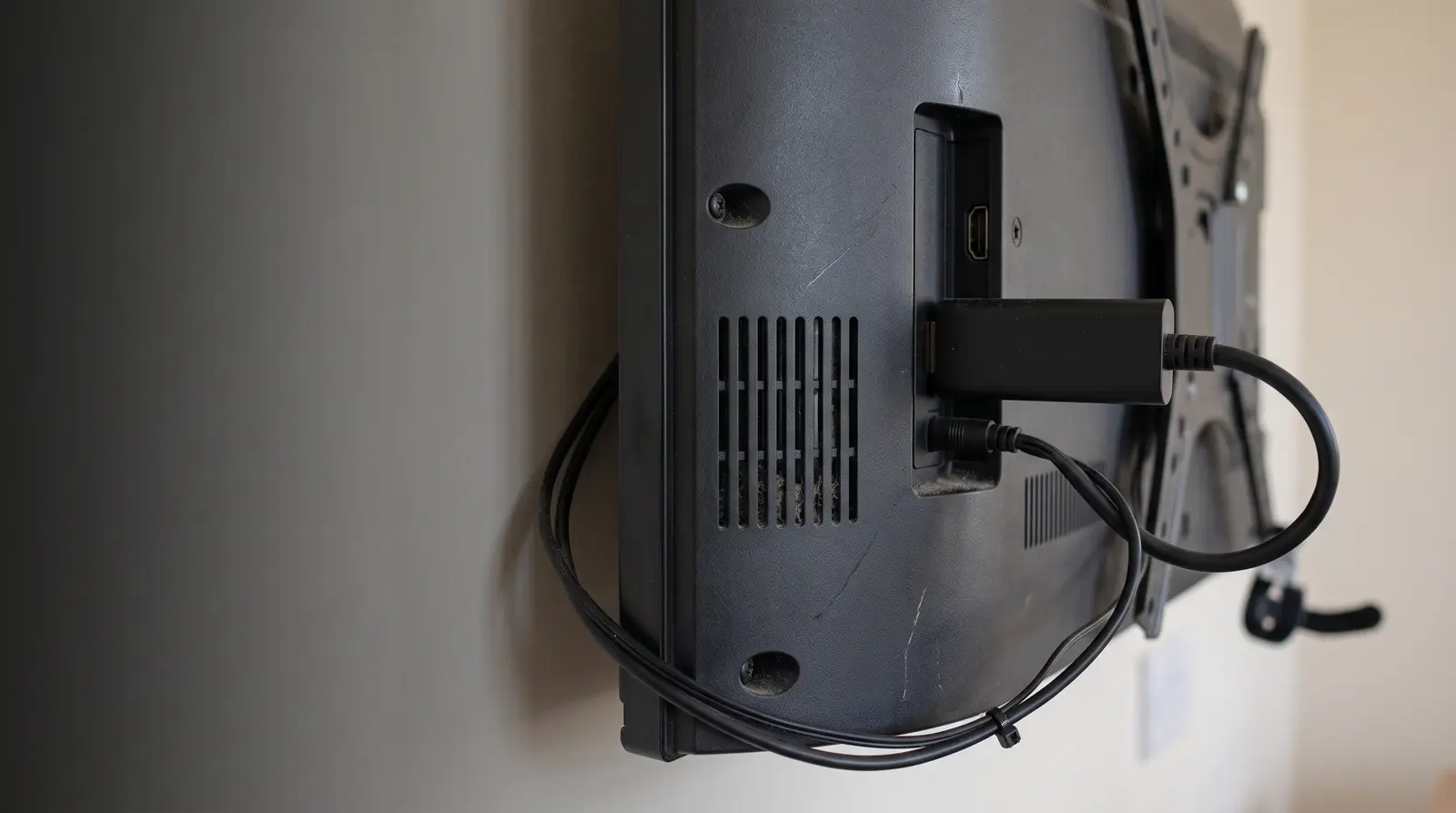
The operating system on every compatible model is Fire OS, Amazon's Android-based build and a fork of the same Android Open Source Project codebase that CloudyFy TV already targets on Android TV. Install method for the Fire OS models: sideload the CloudyFy TV APK, or install it from CloudyFy TV's listing on the Amazon Appstore. The Fire TV Stick 4K Select runs the native Vega build instead of the APK. Every model needs a Wi-Fi connection for setup and content updates and an HDMI port on the display; power comes from the included USB-C adapter plugged into a wall outlet, not the TV's own USB port, which can cut power unpredictably when the display goes to standby. A Fire TV Stick's compact form factor sits directly behind the display and generates a small amount of heat in a tight space. A fully enclosed low-profile bracket that presses the stick flush against the wall can trap that heat over a full day of operation, so leave at least a finger's width of clearance around it, or hang the stick just off the wall on a short HDMI extender cable instead.
How do you install CloudyFy TV on a Fire TV Stick?
Confirm the model
Fire OS models take the APK; the 4K Select takes the Vega build. Both pair the same way.Enable Developer Options
Settings > My Fire TV > About, click the stick’s serial number seven times.Turn on ADB debugging and unknown sources
Under Developer Options.Sideload the CloudyFy TV APK
Use a tool such as Downloader, entering the APK’s URL directly on the stick, or ADB from a computer on the same network.Pair the device
Open the player, note the pairing code, and enter it in the CloudyFy TV CMS under Devices > Pair by Code.Assign, publish, and set auto-launch
Add the stick to a group, attach a layout or playlist, publish, then set CloudyFy TV to launch automatically on boot from the Fire TV’s app settings, so a power cycle brings the signage back without anyone touching it.
Fire TV Stick or a different player?
| Capability | Best for |
|---|---|
Fire TV Stick 4K Max | The lowest-cost single-screen start |
Generic Android TV box (commercial-grade) | A fleet that needs a purpose-built, always-on box rather than a consumer stick; see / |
Samsung Tizen or LG webOS display | Sites already standardized on those TV brands, no external stick needed |
Browser player | A Windows or Mac machine you already have, no new hardware at all; see / |
Best for
- Fire TV Stick 4K Max
- The lowest-cost single-screen start
- Generic Android TV box (commercial-grade)
- A fleet that needs a purpose-built, always-on box rather than a consumer stick; see /
players/ android-tv/ - Samsung Tizen or LG webOS display
- Sites already standardized on those TV brands, no external stick needed
- Browser player
- A Windows or Mac machine you already have, no new hardware at all; see /
players/ browser/
All four play the same CloudyFy TV layouts. Pick based on what you already own and how many screens you are outfitting.
Switching an existing Fire TV Stick to CloudyFy TV?
Keep the stick
Stop the old signage app from launching on boot, sideload CloudyFy TV the same way described above, and set CloudyFy TV as the new boot app. No factory reset needed.Start clean
Factory reset the stick from Settings > My Fire TV > Reset to Factory Defaults, then sideload and pair CloudyFy TV on a clean device. Use this route if the old signage app left background services running that fight CloudyFy TV for the screen.
Can a Fire TV Stick run 24 hours a day?
No official rating, but reliable with three habits
No Fire TV Stick model is officially rated by Amazon for continuous commercial use, and none has HDMI-CEC control to power the display down with the stick. Three things make a Fire TV Stick reliable enough for always-on signage anyway: plug it into its own power adapter rather than a TV's USB port, which can cut power when the display sleeps; give it room to ventilate rather than sealing it behind a flush panel; and schedule a remote reboot from the CloudyFy TV console on a regular cadence; weekly is a common starting point instead of sending someone on-site to unplug it. That is the same mitigation competitors suggest with a smart plug; CloudyFy TV just does it from software you already have open. A stick that has run for months without a reboot sometimes shows a stuck Fire TV logo mid-boot rather than freezing on the last frame of content. That symptom usually means a background Fire OS update started but never finished, and the fix is still a remote reboot from the console, just give the stick an extra minute or two afterward to let the interrupted update complete before the CloudyFy TV player relaunches on top of it.
FAQs
Ready to pair a Fire TV Stick
Buy a Fire TV Stick 4K Max, start a 7-day free trial of the Starter plan, no commitment, and have a screen live within the hour.