

How to Turn a TV Into Digital Signage
Any TV built since roughly 2021 that runs Android TV, Amazon Fire TV, Samsung Tizen or LG webOS, or any TV with an HDMI port and a separate streaming device, can run CloudyFy TV. You install a small player app, pair it to your account with a one-time code, and publish content from a browser.
Key takeaways
Key Takeaways
- CloudyFy TV's player runs on Android TV, Amazon Fire TV and Android tablets (Android 7.0 / minSdk 24 and up), Samsung Tizen 6.0+, LG webOS 6.0+, and any Chromium 71+ browser.
- There is no app-store listing yet, so every install today is a sideload: enabling unknown sources and transferring the player app directly rather than tapping "install" in a store.
- Pairing is a one-time code shown on the TV and typed once into the CMS, not a username and password entered with a remote.
- The Fire TV Stick 4K Max is the model to buy, and the 4K Select works too: it runs Amazon's newer Vega OS and takes CloudyFy TV native Vega build rather than the Android package.
- From unboxing a stick to your first playlist live on screen, the whole flow takes well under an hour for one screen.
What do you need to turn a TV into digital signage?
Four things, and you likely already have three of them. A TV with an HDMI input and a power outlet nearby. A way to get content onto it: either a TV whose operating system CloudyFy TV supports directly (a 2021-or-later Samsung Tizen or LG webOS panel), or a separate streaming device plugged into any TV's HDMI port (an Android TV box, a Fire TV Stick, or an Android tablet used as the player). A stable network connection, wired or Wi-Fi, for the initial pairing and for pulling new content; once content is downloaded, CloudyFy TV's offline-first players keep showing it even if the network drops afterward. And a CloudyFy TV account, which the 7-day free trial provisions in minutes with no commitment.
If the TV itself is a 2021-or-newer Samsung or LG smart TV, you may not need a separate box at all, since CloudyFy TV's Tizen and webOS players install directly on the panel. Anything older, or any other TV brand, needs an external player: a Fire TV Stick, an Android TV device, or a tablet mounted behind or beside the screen.
Why turn an existing TV into signage instead of buying a purpose-built display?
Because the screen itself is rarely the constraint. Fortune Business Insights values the global digital signage market at USD 31.50 billion in 2025, rising to an estimated USD 34.42 billion in 2026 and USD 69.90 billion by 2034, with North America holding roughly 42.06% of that market [Fortune Business Insights, report FBI101898, updated 21 Aug 2026]. That growth is being driven overwhelmingly by adding intelligence to screens people already own or can buy cheaply, not by manufacturing new panels. Separately, peer-reviewed computer-vision research on real shoppers found that dynamic, changing screen content held customer attention measurably longer than a static sign in the same location, even though the individual glances involved are brief [Ravnik & Solina, Interacting with Computers 25(3), 2013]. The upgrade that matters is what the screen shows and how often it changes, not the physical panel underneath it, which is exactly why a $50 stick plugged into a TV you already own can do real work.
Which approach fits your situation?
- Testing the idea on one screen. A Fire TV Stick 4K Max plugged into a TV you already own is the fastest and most reversible starting point; if it doesn't work out, you've spent under $60.
- A counter, reception desk or small footprint. A wall-mounted Android tablet fits spaces too small for a full TV and doubles as a touch surface if you ever need one.
- A lobby or storefront window that runs all day. A 2021-or-newer Samsung Tizen or LG webOS panel skips the external box entirely, since CloudyFy TV's player installs on the TV itself.
- A screen that might move buildings, get repurposed, or sit in a rented space. Keep the player on a removable stick or box rather than built into the panel, so the hardware travels with you.
- Several screens you want to treat as one visual. That's a video wall project, which builds on the same pairing steps below but adds a grid designer and bezel calibration on top; worth planning separately once your first screen is running.
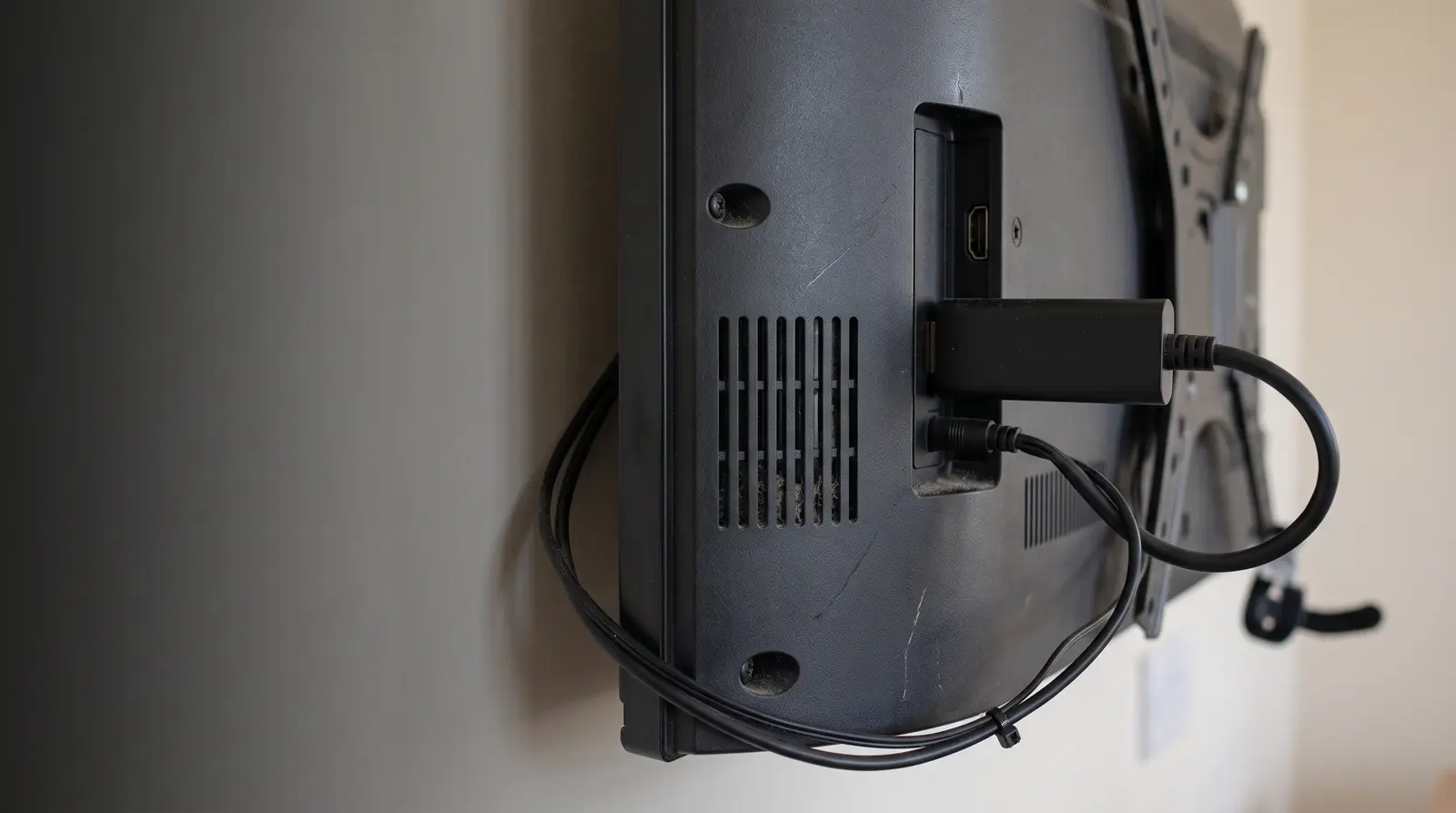
Comparing your options: stick, tablet or a built-in smart TV panel
| Capability | Upfront cost | Setup time | Technical skill needed | Portability | Duty rating | Best scenario |
|---|---|---|---|---|---|---|
Fire TV Stick 4K Max + existing TV | ~$50-60 [Yodeck, 2026] | 20-30 minutes | Low: sideload once, pair with a code | High, unplugs and moves with you | Consumer-rated; a weekly reboot is recommended | A first screen or a pilot |
Wall-mounted Android tablet | Tablet plus a mount; varies by tablet chosen | 20-40 minutes including mounting | Low to moderate: same sideload steps, plus physical mounting | Moderate, mount has to be removed first | Consumer-rated | Counters, small footprints, queue or token displays |
Built-in Samsung Tizen or LG webOS panel (2021+) | Cost of the TV itself; no separate player box | Longer: needs an authorised installer for the signed certificate | Low for day-to-day use once installed | Low, the player is part of the TV | Built for 16-24 hour continuous duty | Lobbies, storefronts, always-on locations |
Fire TV Stick 4K Max + existing TV
- Upfront cost
- ~$50-60 [Yodeck, 2026]
- Setup time
- 20-30 minutes
- Technical skill needed
- Low: sideload once, pair with a code
- Portability
- High, unplugs and moves with you
- Duty rating
- Consumer-rated; a weekly reboot is recommended
- Best scenario
- A first screen or a pilot
Wall-mounted Android tablet
- Upfront cost
- Tablet plus a mount; varies by tablet chosen
- Setup time
- 20-40 minutes including mounting
- Technical skill needed
- Low to moderate: same sideload steps, plus physical mounting
- Portability
- Moderate, mount has to be removed first
- Duty rating
- Consumer-rated
- Best scenario
- Counters, small footprints, queue or token displays
Built-in Samsung Tizen or LG webOS panel (2021+)
- Upfront cost
- Cost of the TV itself; no separate player box
- Setup time
- Longer: needs an authorised installer for the signed certificate
- Technical skill needed
- Low for day-to-day use once installed
- Portability
- Low, the player is part of the TV
- Duty rating
- Built for 16-24 hour continuous duty
- Best scenario
- Lobbies, storefronts, always-on locations
Which TVs and devices does CloudyFy TV support?
| Capability | Minimum version | Package | Install method |
|---|---|---|---|
Android TV / Amazon Fire TV / Android tablet | Android 7.0 (minSdk 24) | .apk | Sideload today; store listings are planned |
Samsung Tizen | Tizen 6.0+ (2021 and newer panels) | .wgt | Installed by an authorised installer with a signed certificate |
LG webOS | webOS 6.0+ (2021 and newer panels) | .ipk | Installed by an authorised installer |
Browser / PWA | Chromium 71+ | none | Open a URL in any modern browser, nothing to install |
Android TV / Amazon Fire TV / Android tablet
- Minimum version
- Android 7.0 (minSdk 24)
- Package
- .apk
- Install method
- Sideload today; store listings are planned
Samsung Tizen
- Minimum version
- Tizen 6.0+ (2021 and newer panels)
- Package
- .wgt
- Install method
- Installed by an authorised installer with a signed certificate
LG webOS
- Minimum version
- webOS 6.0+ (2021 and newer panels)
- Package
- .ipk
- Install method
- Installed by an authorised installer
Browser / PWA
- Minimum version
- Chromium 71+
- Package
- none
- Install method
- Open a URL in any modern browser, nothing to install
Two devices CloudyFy TV does not support today are worth naming so you don't buy the wrong thing: there is no tvOS build, so an Apple TV cannot run CloudyFy TV at all, and a Chromecast with Google TV can technically have an APK sideloaded onto it, but nothing in that path supports kiosk lock, surviving Google's own automatic updates, or remote fleet management, so it is not a workable fit for signage that has to keep running unattended.
How to turn a TV into digital signage: 6 steps
Pick your hardware
For a first screen, an Amazon Fire TV Stick 4K Max (roughly $50-60) plugged into any HDMI TV is the fastest path, and it is the model CloudyFy TV tests against. The Fire TV Stick 4K Select works as well: it runs Vega OS rather than Fire OS, so it takes CloudyFy TV native Vega build instead of the Android package. Check the listing for "Fire OS" or "Vega OS" so you download the right one.Enable sideloading on the device
Since no app-store listing is live yet, turn on Developer Options on the TV or stick (typically by tapping the build number several times in Settings) and allow installs from unknown sources.Install the CloudyFy TV player
Transfer the player APK to the device over USB or with a sideload tool such as Downloader, then open it once so it displays a pairing screen.Pair the device with a one-time code
The player shows a short code on screen. Enter that code in the Devices section of the CloudyFy TV CMS to claim the device onto your account; from that point it belongs to a named device group you control.Build your first layout
Start from one of 93 ready-made design templates or build from a blank canvas using the drag-and-drop block editor: drop in an image, a video, or a text block, and arrange them into zones if the screen needs more than one region.Publish your first playlist
Add your layout to a playlist, then run it through the publish wizard's four steps, Content, Screens, Schedule and Review, which checks every target device is actually ready before anything goes live and flags a plain-language reason if one isn't.
What happens if the TV loses power or the network drops?
Nothing dramatic. CloudyFy TV's players are offline-first: once a layout and its media are downloaded to the device, they are cached locally, and the screen keeps playing that cached content through a dead Wi-Fi connection with zero network access. After a power cut, the player starts back up on its own and resumes the same cached content with no one touching it. When the connection returns, the player picks up any new content automatically rather than requiring a manual refresh. For unattended locations like a stick behind a lobby TV, this matters more than almost any other spec: a screen that goes dark every time the router reboots is a screen nobody trusts, and that is precisely the failure mode offline-first playback is built to avoid.
Is a DIY sideload install as reliable as a fully managed one?
For one screen, or a handful, yes. The sideload steps above are a one-time setup per device, and once a device is paired it behaves exactly like any other CloudyFy TV player: it receives scheduled content, responds to remote commands, and reports its health back to the CMS. What a DIY install does not give you automatically is fleet-scale convenience, walking to a dozen screens one at a time to reboot each after a firmware update, for instance. CloudyFy TV closes most of that gap from the CMS side rather than the install side: devices can be grouped, restarted, refreshed, and locked into kiosk mode remotely regardless of whether the underlying hardware was sideloaded or professionally installed. The honest tradeoff is time spent once at setup, not an ongoing reliability penalty.
What to pair your first screen with
A handful of settings turn a screen that merely works into one that runs unattended with confidence. Kiosk mode, with a server-issued exit PIN, stops anyone from backing out to the device's home screen or another app by accident. Device groups let you restart players, refresh content, or reassign a schedule to every screen in a location at once instead of one at a time. Scheduling with dayparting is worth setting up even for a single screen, so a lunch menu automatically swaps to a dinner menu without anyone touching the CMS at 4pm. And on the physical side, a surge-protected outlet and the stick's own power adapter, rather than a TV's built-in USB port, avoid the two most common reasons a consumer streaming device drops offline.
FAQs
Start with one screen
The lowest-risk way to try this is exactly the setup above: one TV, one stick, one 7-day trial with no commitment. If the first screen earns its spot, adding a second, a tenth, or a video wall later reuses the same pairing and publishing steps you've already learned.