

How Does Digital Signage Work?
A digital signage system works in three layers: a cloud content management system where you design and schedule content, a publish step that compiles it for each screen, and a player application on the screen itself that downloads, caches, and displays it, then reports back that it played. This guide walks through each layer using CloudyFy TV as the worked example.
7-day free trial of the plan you choose, Starter by default. No commitment.
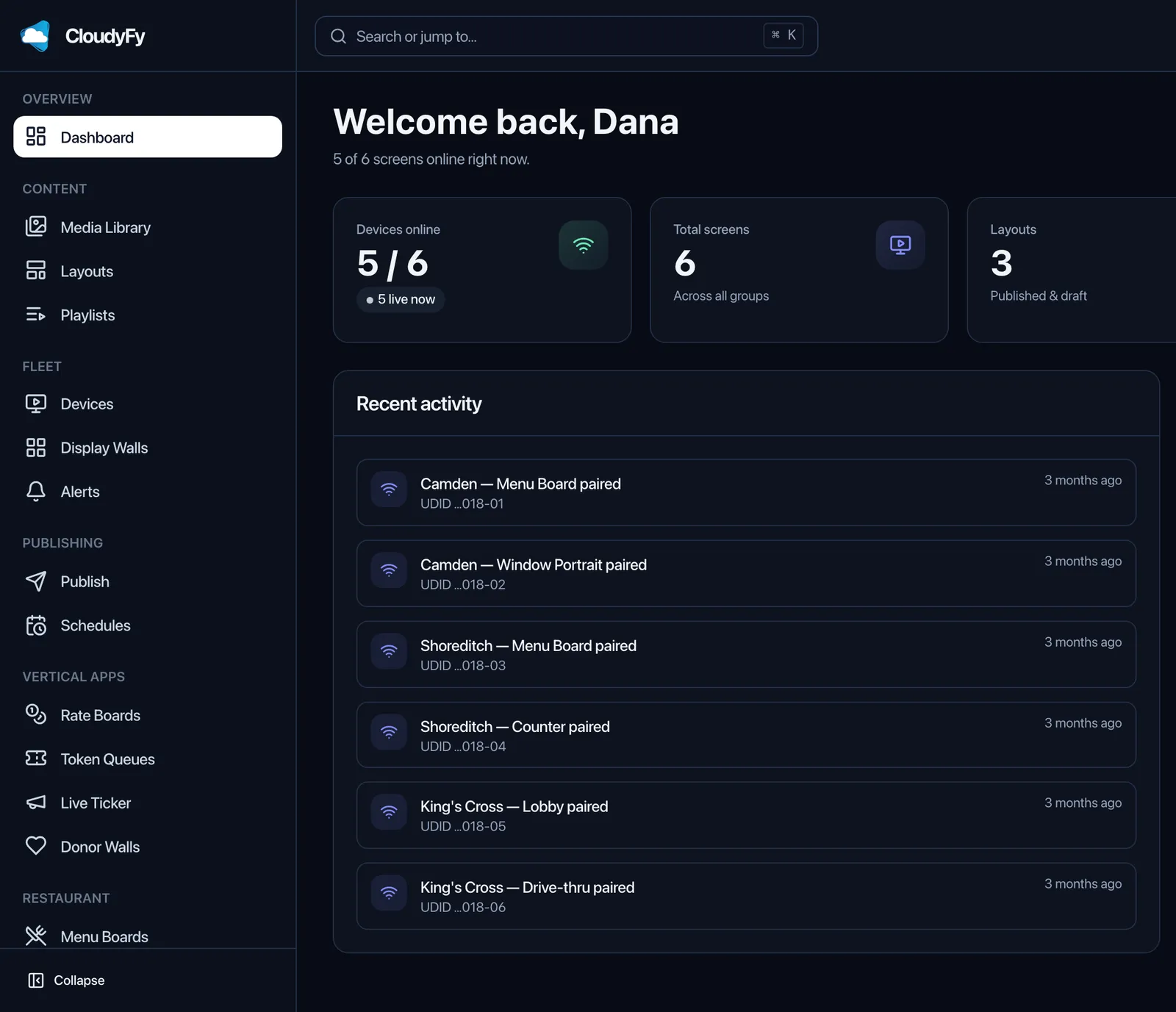
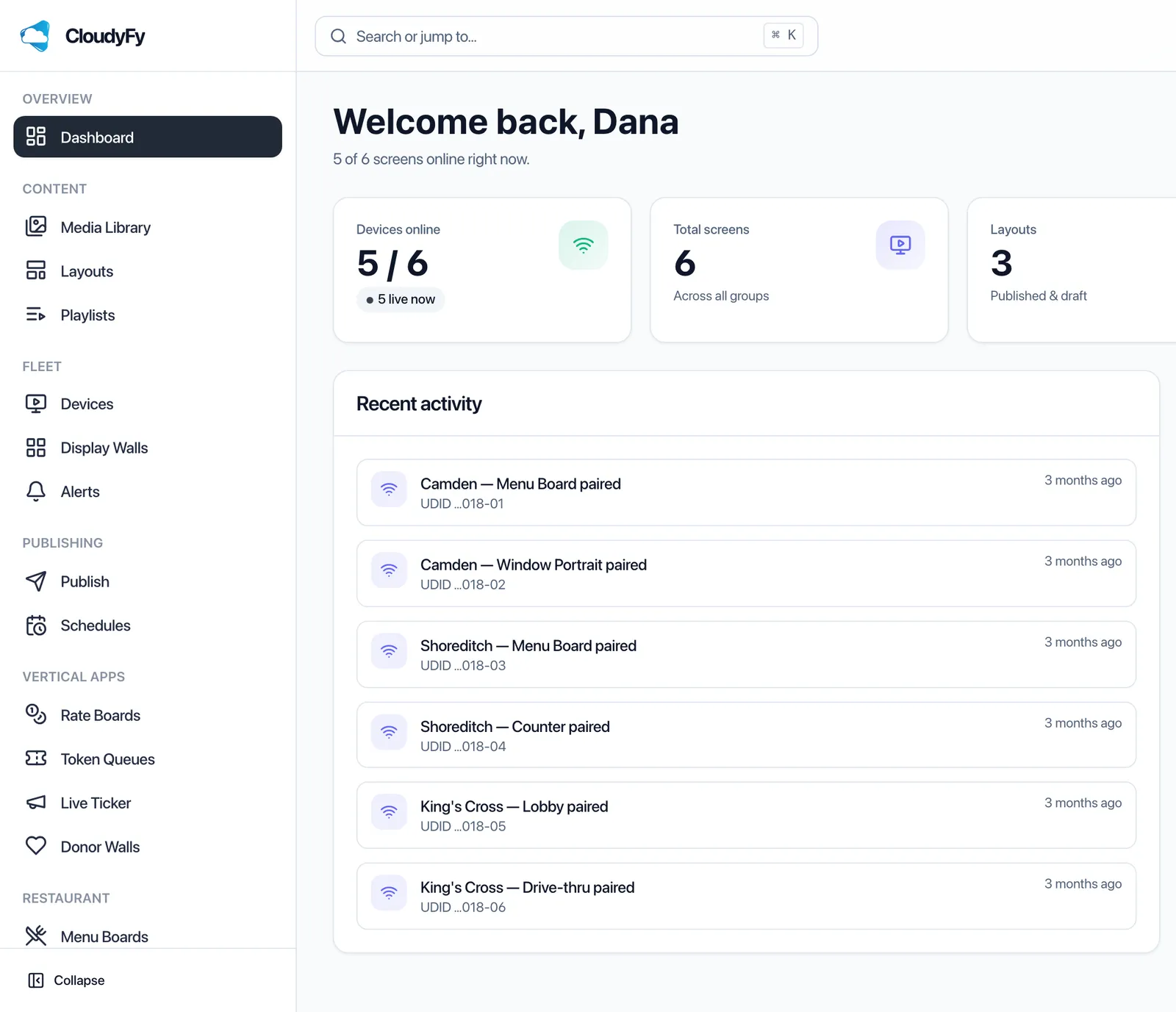
Key takeaways
Key takeaways
- A digital signage system works in three layers: a cloud CMS for designing and scheduling content, a publish step that compiles it, and a player on the screen that caches and reports back.
- Publishing only moves the bytes a screen is missing. Every media file is fingerprinted with a SHA-256 hash, so ten layouts sharing one video store and send that video once, not ten times.
- Live data, like a rate-board price or an emergency alert, reaches the screen over MQTT in about a second; a full layout republish takes slightly longer because new media has to transfer.
- If the network drops, the player keeps looping its last cached content instead of going dark, and a fleet dashboard flags the outage before a customer notices.
- The digital signage market is projected to grow from $21.45 billion in 2025 to $28.88 billion by 2030 (MarketsandMarkets, dated 21 January 2026), and a computer-vision field study found dynamic content held shopper attention longer than static content (Ravnik and Solina, Interacting with Computers 25(3), 2013).
How does digital signage work?
A digital signage system works in three layers: a cloud-based content management system for designing and scheduling content, a publish step that compiles it into a small package for each screen, and a player application on the screen itself that downloads, caches, and displays that package, then reports back that it played.
Each layer solves a different problem. The CMS is where the human work happens: dragging blocks onto a canvas, setting a schedule, choosing which screens get which layout. The publish step is where the system does the bookkeeping: figuring out exactly what each screen needs and what it already has, so nothing is sent twice. The player is where the content actually appears, and where it has to keep working even when the layers above it temporarily cannot reach it.
Does dynamic content actually hold attention better than a static sign?
The peer-reviewed evidence says yes, though the effect is measured in fractions of a second, not a dramatic swing. A computer-vision study of 1,294 customers at one boutique found that dynamic content held shopper attention longer than static content, even though the average glance at any screen was well under a second.
Why does publishing take seconds, not hours?
Because the system only ever moves the bytes a screen is missing. Every media file is fingerprinted with a SHA-256 hash the moment it is uploaded, and the publish step compares that fingerprint against what each screen already has cached. If two layouts on ten screens share the same background video, that video is uploaded once and referenced ten times, never re-sent to a screen that already has it.
This is the same idea a well-built software update uses: a delta, not a full reinstall. It is also why a screen recovering from a power cut does not need to redownload everything, only whatever changed while it was off. The manifest itself, the list of what a screen should be playing right now, is what the player checks against its own local cache on every reconnect.
Deduplication works across the whole account, not just within one layout. If ten separate layouts each use the same 30-second brand video in one block, that video is stored and hashed once in the media library, and every layout simply references it. Delete or replace it in one place and every layout using it updates the next time it publishes, rather than requiring ten separate uploads to stay in sync.
There is a second reason a publish stays fast, and it is a limit rather than a trick. A layout is checked against a total media ceiling when you publish it, not when you upload: 250 MB of combined media on the entry plan, 500 MB and 1,000 MB on the two above it. Individual files have their own ceilings, with the largest single video running from 250 MB to 1,024 MB by plan, and flat caps of 10 MB for an image, 100 MB for a PDF and 50 MB for audio on every plan. The check runs before anything is sent, so an oversized screen is refused in the wizard with the offending block named, rather than half-delivered to forty players and discovered on the wall.
That sits alongside the category continued growth as a second, independent signal. Operators keep adding screens because the mechanism, content that changes rather than sits still, keeps earning a second look.
What happens when something goes wrong?
The difference between a USB stick, a dedicated PC, and a managed platform shows up most clearly at the moment of failure or the moment you need to scale, not during normal operation.
| Capability | USB stick or SD card setup | Laptop or PC cabled to the screen | Cloud platform (CloudyFy TV) (CloudyFy TV) |
|---|---|---|---|
Power cut mid-loop | The screen goes black or the loop corrupts, with no record of it happening | The machine reboots into its own OS; the screen stays dark until someone notices and relaunches the player | The player resumes from its local cache once power returns; nothing is lost |
Wrong content assigned to the wrong screen | Only found when someone notices in person | Only found in person; there is no fleet-wide view to catch it earlier | The fleet dashboard flags the mismatch, and the publish wizard readiness matrix blocks the publish before it happens |
Proving a screen actually played something | No log exists at all | No log exists unless someone manually records it | Proof of play records play count and duration per device and per layout, exportable as CSV |
Updating content across many screens at once | Physically swap the file on every screen, in person or by courier | Update the one file on the one machine driving that one screen; does not scale past a handful of screens | One edit and one publish click reaches every assigned screen from a single login |
Recovering after a network outage | No network dependency, but also no remote visibility into whether the loop is even running | Usually needs the network back before anything beyond local playback works again | The player keeps playing from its local cache; only the changes it missed sync once the connection returns |
Ongoing maintenance | A physical visit for every content change | A dedicated machine to patch, reboot, and keep from sleeping or updating itself mid-loop | Managed entirely from a browser; devices report their own health without a site visit |
USB stick or SD card setup
- Power cut mid-loop
- The screen goes black or the loop corrupts, with no record of it happening
- Wrong content assigned to the wrong screen
- Only found when someone notices in person
- Proving a screen actually played something
- No log exists at all
- Updating content across many screens at once
- Physically swap the file on every screen, in person or by courier
- Recovering after a network outage
- No network dependency, but also no remote visibility into whether the loop is even running
- Ongoing maintenance
- A physical visit for every content change
Laptop or PC cabled to the screen
- Power cut mid-loop
- The machine reboots into its own OS; the screen stays dark until someone notices and relaunches the player
- Wrong content assigned to the wrong screen
- Only found in person; there is no fleet-wide view to catch it earlier
- Proving a screen actually played something
- No log exists unless someone manually records it
- Updating content across many screens at once
- Update the one file on the one machine driving that one screen; does not scale past a handful of screens
- Recovering after a network outage
- Usually needs the network back before anything beyond local playback works again
- Ongoing maintenance
- A dedicated machine to patch, reboot, and keep from sleeping or updating itself mid-loop
Cloud platform (CloudyFy TV)
- Power cut mid-loop
- The player resumes from its local cache once power returns; nothing is lost
- Wrong content assigned to the wrong screen
- The fleet dashboard flags the mismatch, and the publish wizard readiness matrix blocks the publish before it happens
- Proving a screen actually played something
- Proof of play records play count and duration per device and per layout, exportable as CSV
- Updating content across many screens at once
- One edit and one publish click reaches every assigned screen from a single login
- Recovering after a network outage
- The player keeps playing from its local cache; only the changes it missed sync once the connection returns
- Ongoing maintenance
- Managed entirely from a browser; devices report their own health without a site visit
The pattern across every row is the same: a managed platform turns an invisible failure into a visible one, ideally before a customer notices it first, and it is the only one of the three approaches built to do that by default.
What are the steps from a blank canvas to a playing screen?
Five steps, and CloudyFy TV names each one the same way in its own interface, so the workflow and the vocabulary match.
Design a layout
Drag blocks onto a canvas: video, image, PDF, a live rate feed, plain text, or a split panel for two zones on one screen. CloudyFy TV offers 36 block types and 93 starter templates, so most layouts start from an existing design rather than a blank grid.Build a playlist and set a schedule
Order layouts with a dwell time and a transition between them, then decide when each one plays. The CloudyFy TV schedule types are Once, Repeat, and Override, each with its own timezone and a preview of the next run before you save.Publish
The CMS compiles a manifest, a list of exactly which files this screen needs, each identified by a SHA-256 hash of its contents, and checks it against every target device before anything leaves the server. The CloudyFy TV publish wizard runs four steps, Content, Screens, Schedule, Review, and behind the Review step, 12 separate guard checks confirm each target screen can actually decode and store what you are about to send, so a publish never fails silently on a device that simply cannot handle a specific file.Play, and keep playing if the network drops
The player downloads the manifest, stores it locally, and loops the last known-good content if the connection is lost. Anything that needs to update without a full republish, a rate-board price or an emergency alert, arrives over MQTT in about a second rather than through a slow poll.Monitor and prove it played
A fleet dashboard shows device health in real time, and a proof-of-play log records what showed, on which screen, and for how long, exportable as a CSV.
Who actually does each step, on a typical team?
The five steps rarely sit with one person, and knowing who owns which one helps set up roles correctly from the start.
Design and scheduling (steps 1-2)
Usually sit with whoever owns content: a marketing coordinator, a store manager, or a franchise owner building their own layouts from a starter template. This work happens entirely in the browser and does not touch the physical screens at all.
Publishing and device setup (steps 3-4)
Typically an IT or operations task: pairing a new screen with a code, assigning it to the right group, and running the publish wizard once content is ready. On CloudyFy TV, roles and permissions can restrict a content editor to designing layouts without letting them publish or manage devices, so a franchise owner can review before anything goes live.
Monitoring and reporting (step 5)
Often belongs to a manager who was not involved in either of the first two steps, checking the fleet dashboard for offline screens or pulling a proof-of-play report to confirm a promotion actually ran across every location it was supposed to.
When the split matters
Splitting the workflow this way is optional. A single-location business can run all five steps as one person; a franchise with 40 locations usually cannot. CloudyFy TV roles cover 34 permission modules, plus per-user device and layout whitelists, so a regional manager can be given publish access to only their own region screens, and a content designer can be given layout access with no publish or device permissions at all.
Roles and permissions
Publish to your first screen
Fifteen days on the plan you choose, Starter by default, with the full screen cap and AI credits that plan carries. No commitment.