

Google Slides on your digital signage screens
Connect a Google Slides presentation once, and CloudyFy TV keeps every screen playing it in sync with your latest edit. No exporting to images, no re-uploading a deck every time a price or a schedule changes.
What does the Google Slides integration do?
It turns a Google Slides presentation into a live screen source, so CloudyFy TV keeps pulling the current version of your deck instead of a one-time snapshot. Add the connection once from the Integrations screen, and every slide you edit in Google Slides reaches your screens the next time CloudyFy TV checks the presentation. This is built for content that changes on a schedule you do not control minute to minute: announcements, class schedules, daily specials, meeting-room agendas, anywhere the deck is the easiest place for a non-technical team member to make the edit.
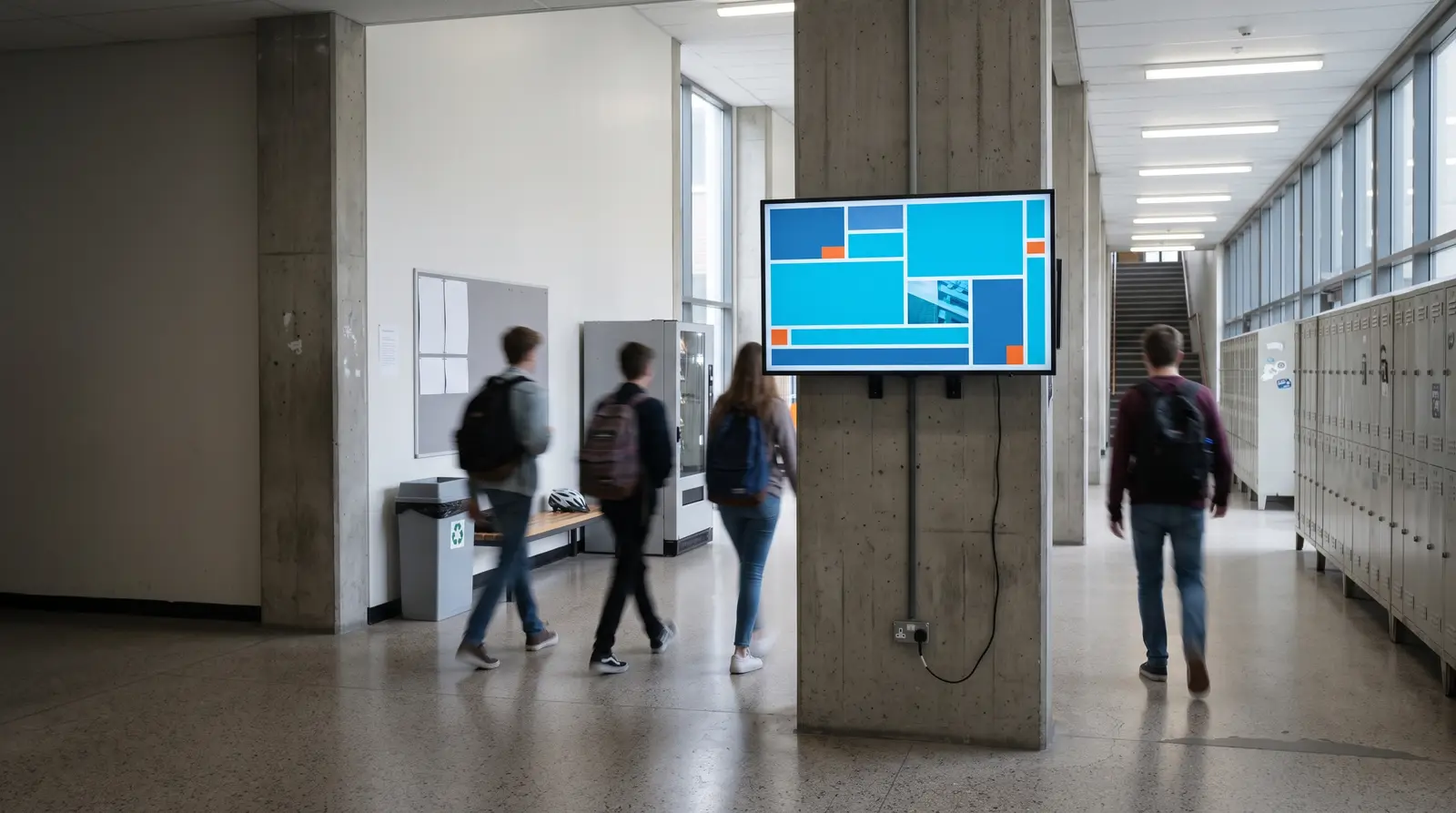
What can you display from a Google Slides connection?
Anything you can put in a slide: text, images, charts pasted as images, and simple layouts your team already knows how to build. The Google Slides block plays the presentation full screen or inside one region of a larger layout alongside other blocks, and it advances through slides the same way the deck is set up to play, at whatever timing you have set on the source. A common setup is a school front office keeping the day's announcements and lunch menu in one shared deck, or a corporate lobby keeping the meeting-room schedule in another. Whoever already owns that Google account keeps editing it exactly as before; nobody on the signage side needs to touch the layout again once the block is placed.
How do you connect Google Slides to CloudyFy TV?
Five steps, all inside the CMS. From there, editing the presentation in Google Slides is the only maintenance step. CloudyFy TV re-checks the connection on its own schedule, so a slide changed on Monday morning is what a screen shows at its next refresh, not what was live when you first connected it.
Open Integrations and choose Add connection
Select Google Slides and provide the link to your presentation
Test the connection to confirm CloudyFy TV can read the current slides
Open a layout, add a Google Slides block, and pick the connection you just created
Publish the layout to the screens or groups you want it on
What you need to use the Google Slides integration
Plan
Included on Starter, Standard, and Pro, and during your 7-day free trial. No per-connection charge.
Permissions
A role with the Integrations module enabled, the same permission that covers every other connection type.
Data flow
CloudyFy TV stores the presentation link and fetches its content on a polling schedule, caching the last successful version on each device. If a screen loses its connection, it keeps showing that last good copy instead of going blank.