YouTube videos on your digital signage screens
Connect a YouTube channel, playlist, or single video, and CloudyFy TV plays it on loop across your screens like any other block. No downloading files, no re-uploading when the source video updates.
What does the YouTube integration do?
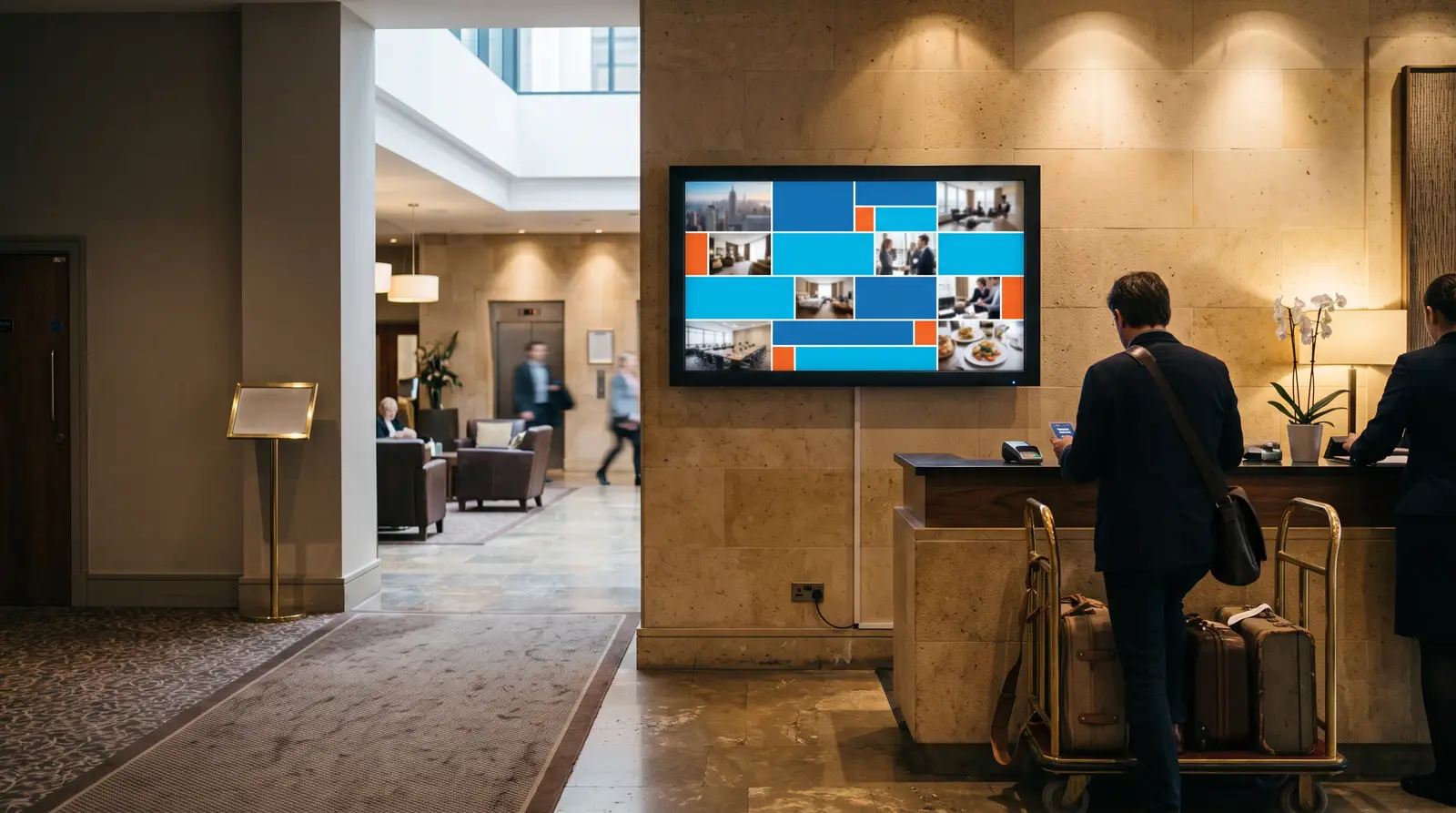
It plays public YouTube content directly on a CloudyFy TV screen as a managed block, so a brand video, a product demo, or a playlist of testimonials runs the same way any other layout content does: scheduled, grouped, and swapped without touching the physical screen. Add the connection once, point it at a channel, playlist, or specific video, and CloudyFy TV handles playback on the player itself. Retail storefronts loop a single ambient brand video during opening hours; hospitality lobbies rotate a welcome playlist through the day; a corporate reception plays a recruiting or culture video on the same screen that also shows the day's visitor schedule. In every case the video is one block among several, not the whole layout.
What can you display from a YouTube connection?
A single video on loop, an entire playlist that advances automatically, or a channel's uploads in order, whichever matches how the source content is organised. The youtube block can run full screen as the only thing on a layout, or share the screen with other blocks in a split: a promotional video in one zone while a ticker or clock runs in another. If the connection points at a playlist, the block plays through it in the order the playlist is arranged and starts again from the top once it finishes, so reordering the playlist in YouTube is enough to change what plays next, no layout edit required.
How do you connect YouTube to CloudyFy TV?
Five steps, done once per source. If the source is a playlist or channel, adding a new video there is enough. CloudyFy TV picks it up on its next check without anyone touching the layout again, and there is no step where you re-download or re-upload the video file itself, the connection always points at the live YouTube source.
Open Integrations and choose Add connection
Select YouTube and provide the channel, playlist, or video you want to play
Test the connection to confirm CloudyFy TV can reach it
Open a layout, add a YouTube block, and select your connection
Publish the layout to the screens or groups you want it on
What you need to use the YouTube integration
Plan
Included on Starter, Standard, and Pro, and during your 7-day free trial. There is no separate charge for how many videos or playlists you connect.
Permissions
A role with the Integrations module enabled, the same permission used for every other connection type.
Data flow
CloudyFy TV stores the channel, playlist, or video reference and fetches playback data on a polling schedule, caching what it needs locally so playback continues through a brief network drop rather than freezing or dropping to a black screen.