

Display a live web page on your digital signage screens
If you can already reach it in a browser, a public web page, an internal dashboard, a status page, CloudyFy TV can show it on a screen. Connect the URL once and the block keeps loading the live page, not a screenshot.
What does the web page integration do?
It loads any public URL inside a layout as a live block, so whatever updates on that page, a live dashboard, a booking calendar, a status board, updates on your screen without anyone touching CloudyFy TV. This is the most general-purpose of the six integrations: where Google Slides or YouTube expect a specific kind of source, the Web page connection takes any address you can already load in a browser. Teams reach for this one when the content they want already exists somewhere else on the web and rebuilding it as a native CloudyFy TV layout would just be duplicate work: an internal BI tool's public share link, a vendor's own status page, or a form-confirmation page a front desk wants visible at all times.
What can you display from a web page connection?
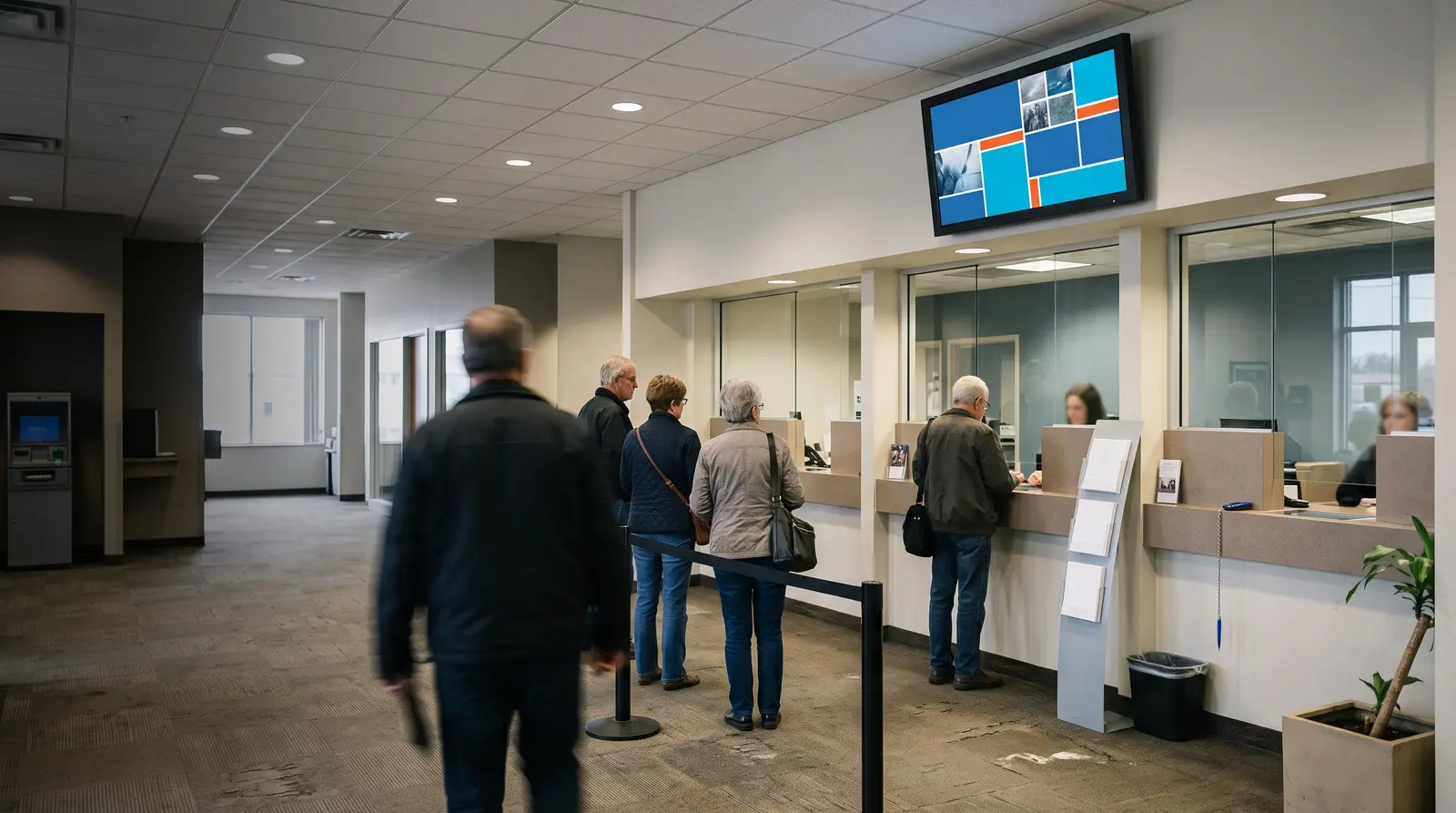
Any page that renders correctly without a login wall in front of it, since the block loads the page directly rather than through a browser session tied to your account. Common uses on CloudyFy TV are an internal metrics dashboard, a room-booking status page, a public tracker, or a branded landing page, run full screen or sharing a layout with other blocks. Corporate offices commonly point it at a meeting-room availability page or a company intranet's announcements view; banks and clinics use it for a public status or wait-time page alongside the token-queue block on the same screen.
How do you connect a web page to CloudyFy TV?
Five steps. Once it is live, updating the source page is the only maintenance step. CloudyFy TV reloads the connection on its normal schedule, so a page that changes throughout the day stays current on screen without a manual republish.
Open Integrations and choose Add connection
Select Web page and enter the URL you want to display
Test the connection to confirm the page loads correctly
Open a layout, add a Website block, and select your connection
Publish the layout to the screens or groups you want it on
What you need to use the web page integration
Plan
Included on Starter, Standard, and Pro, and during your 7-day free trial.
Permissions
A role with the Integrations module enabled, the same permission needed for any other connection type on the account.
Data flow
CloudyFy TV stores the URL and reloads it on a regular schedule, caching the last successful render on each device so a screen keeps showing that page if the source or the network briefly goes down.