

Display a PDF on your digital signage screens
If your content already exists as a PDF, a menu, a notice, a price list, upload it once and CloudyFy TV turns every page into a slide on your screen automatically. No redesigning it as a layout from scratch.
What does the PDF integration do?
It is the fastest way to get a finished document on screen: upload a PDF to the media library, and CloudyFy TV generates a thumbnail of every page automatically, then plays through them like a slideshow at whatever timing you set. Unlike the other five integrations on this page, PDF is not a live connection you configure on the Integrations screen, it is a native content type, so there is no external source to test and no credential to enter. Teams that already produce a document for print, a menu sent to a printer, a notice board layout built in a design tool, get the same file working on screen without redoing the design as native CloudyFy TV blocks. Whatever software made the PDF stays the source of truth.
What can you display from a PDF?
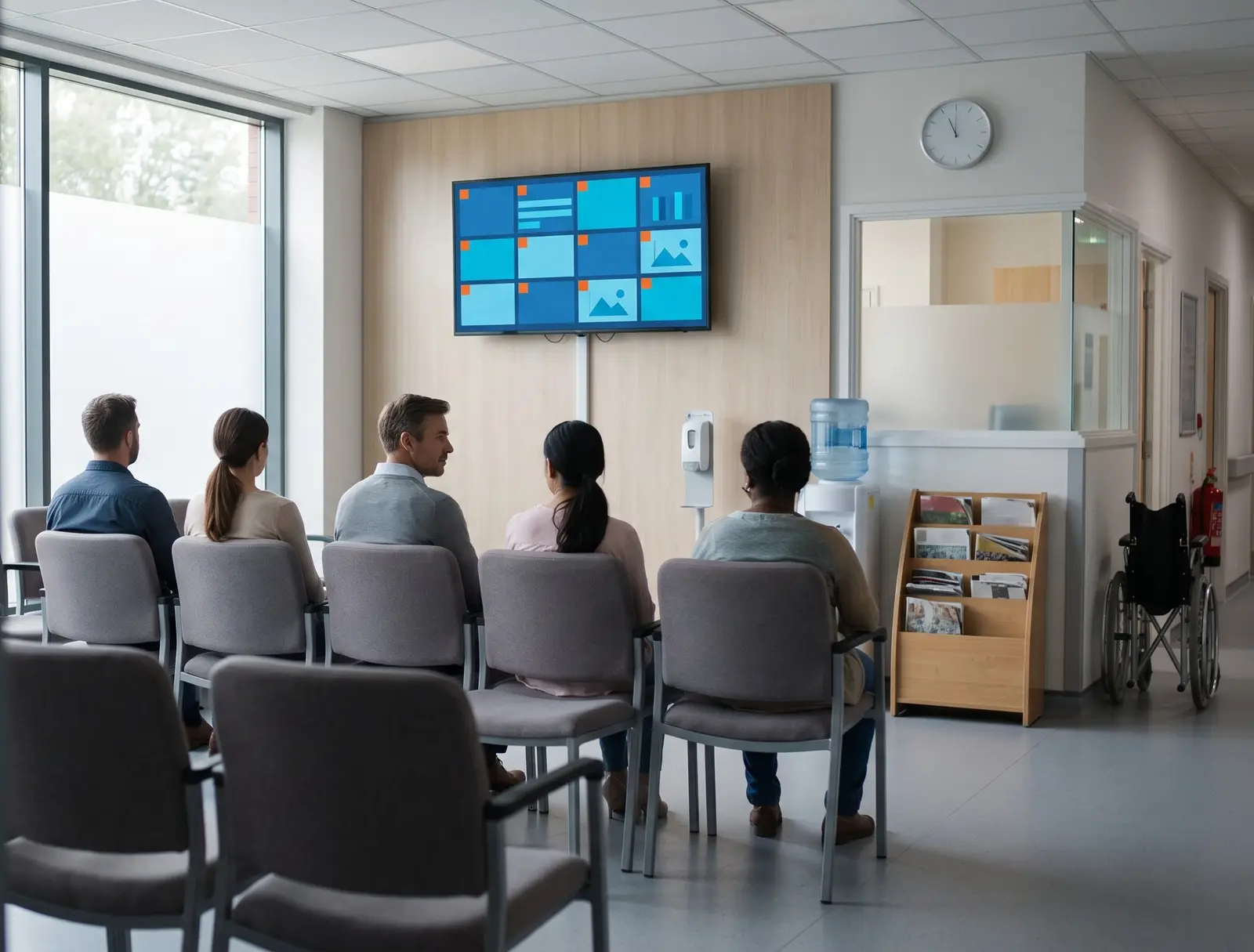
Anything you already produce as a document: a restaurant menu, a clinic's notice board, a price list, a class schedule, a brochure. Each page of the PDF becomes its own slide in the pdf block, in order, and the block can run full screen or share a layout with other content the same as any other block type. Because the source is a media library file rather than a live feed, it is the right choice when your content changes by revision, not continuously. A restaurant with a seasonal menu, a clinic with a printed intake notice, or a school with a term calendar all fit this pattern: the document is correct for weeks or months at a time, and a new version simply replaces the old one when it is due for an update.
How do you add a PDF to CloudyFy TV?
Five steps, and none of them touch the Integrations screen. When the document changes, upload the new version to the media library and swap it into the block. There is no connection to reconnect and no separate config screen; the media library is the whole mechanism.
Open Media Library and upload your PDF
CloudyFy TV generates a thumbnail for every page automatically
Open a layout and add a PDF block
Select your uploaded file and set how long each page shows
Publish the layout to the screens or groups you want it on
What you need to display a PDF
Plan
Included on Starter, Standard, and Pro, and during your 7-day free trial. The global upload cap for a PDF is 100 MB on every plan.
Permissions
Whichever role can access Media Library and Layouts, no separate Integrations permission needed since this is not a live connection.
Data flow
The file is stored once, and CloudyFy TV's offline-first players cache it locally, so a PDF block keeps playing from the device's own copy even if the network drops.